
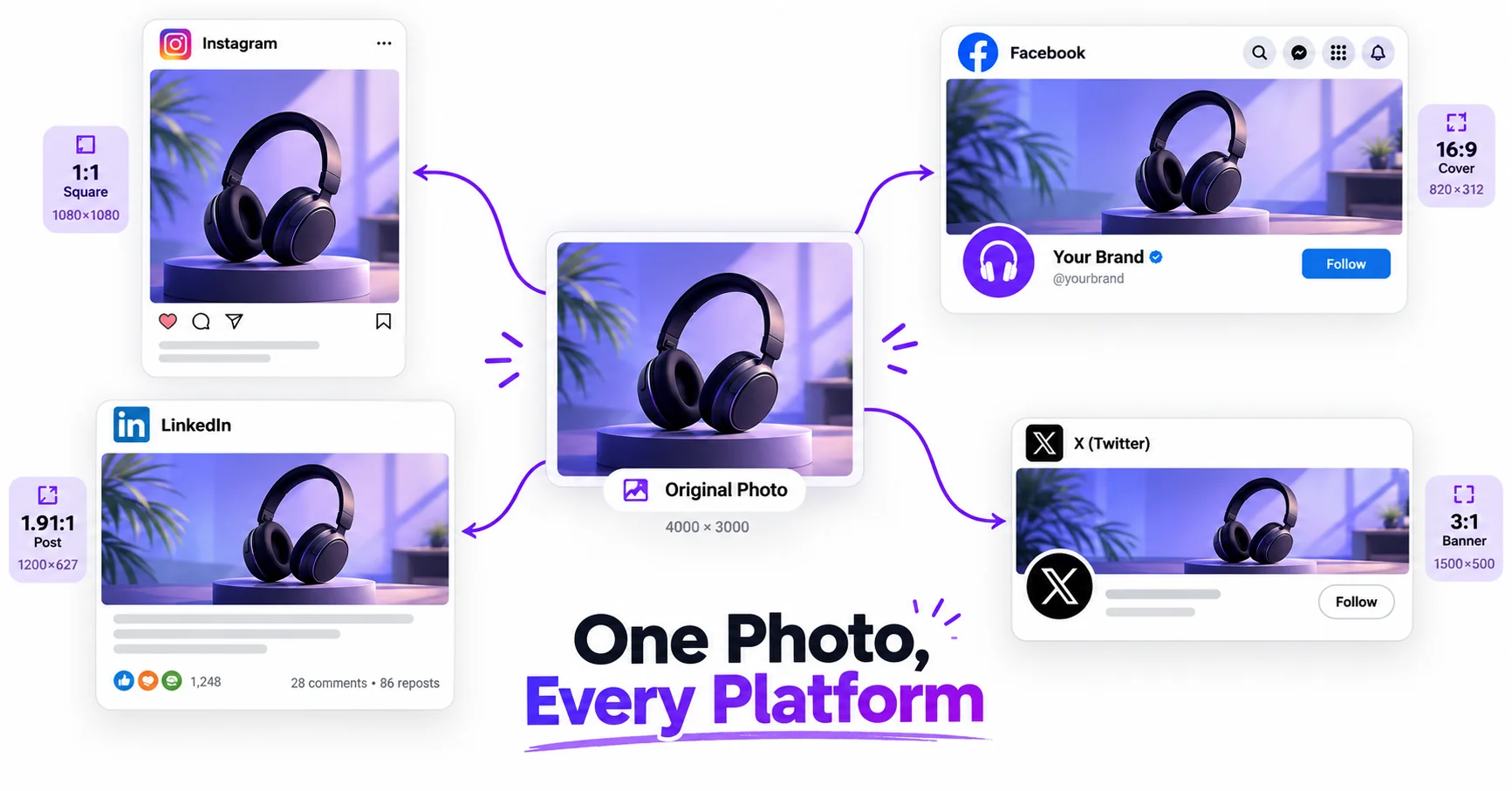
Every social media platform wants your image in a slightly different shape. Post the same photo everywhere without resizing first, and you’ll end up with awkward crops, stretched faces, or important details cut off. Resizing once for each platform fixes that, and it takes just a couple of minutes online.
Why One Size Doesn’t Fit All Platforms
Instagram, Facebook, Twitter/X, and LinkedIn each display images at different aspect ratios and pixel dimensions. Upload a single image everywhere without adjusting it, and each platform’s own auto-crop will decide what to show, often cutting off faces, text, or the parts of the photo that actually matter. Preparing the right size for each platform in advance keeps you in control of your own composition.
Common Platform Dimensions
| Platform | Recommended Size |
|---|---|
| Instagram Post (Square) | 1080 x 1080 px |
| Instagram Story | 1080 x 1920 px |
| Facebook Cover Photo | 820 x 312 px |
| Facebook Feed Post | 1200 x 630 px |
| Twitter/X Post Image | 1200 x 675 px |
| LinkedIn Post Image | 1200 x 627 px |
| LinkedIn Cover Photo | 1584 x 396 px |
How to Resize for All Social Media Platforms — Step-by-Step
Using ImageConvertNow’s social media pack tool:
- Go to imageconvertnow.com/social-media-pack.
- Upload your original photo once.
- Select the platforms and formats you need (Instagram, Facebook, Twitter, LinkedIn, and more).
- Download all the resized versions, each generated automatically for its target platform.
Tips for Best Results
- Keep your main subject centered when possible, since different platforms will crop from different edges depending on their required aspect ratio.
- Start from your highest-resolution original photo, so every resized version stays sharp instead of enlarging a smaller file.
- If a specific crop looks off after auto-resizing, use the crop tool to manually adjust the composition for that platform.
- Compress your final images with the image compressor if file size matters for faster uploads.
Common Use Cases
- Multi-platform content calendars: Prepare one photo shoot for use across every social channel at once.
- Brand consistency: Make sure your profile pictures and cover photos look intentional, not auto-cropped, on every platform.
- Social media management for clients: Quickly generate a full set of platform-ready sizes for scheduled posts.
- Personal branding: Keep a consistent, professional look across LinkedIn, Instagram, and other profiles.
Frequently Asked Questions
1. Do social media dimensions change over time?
Yes, platforms occasionally update their recommended sizes, so it’s worth checking current guidelines periodically, especially for cover photos and banners.
2. Will my photo look different on each platform even after resizing?
Slightly, since each platform still applies its own display compression and rendering, but properly resizing beforehand gives you far more control over the composition than letting each platform auto-crop your original.
3. Is resizing for multiple social platforms free?
Yes, ImageConvertNow’s social media pack tool is free to use with no account required.
4. Can I resize for just one platform instead of all of them?
Yes, you can select only the specific platforms and formats you need rather than generating every available size.
5. Should I resize before or after adding text or a watermark to my image?
It’s usually best to add text or watermarks after resizing for each platform, since text that looks properly sized on a square Instagram post may appear too small or too large on a differently shaped banner.
Conclusion
Preparing the right image size for each platform takes the guesswork out of how your content will actually appear. Try the free social media pack tool now and get every size you need from a single upload.
You can also fine-tune individual crops with the crop tool, adjust exact pixel dimensions with the resize tool, or read more about image best practices at web.dev’s image optimization guide, Google Search Central’s image SEO guidance, and MDN’s image formats reference.