
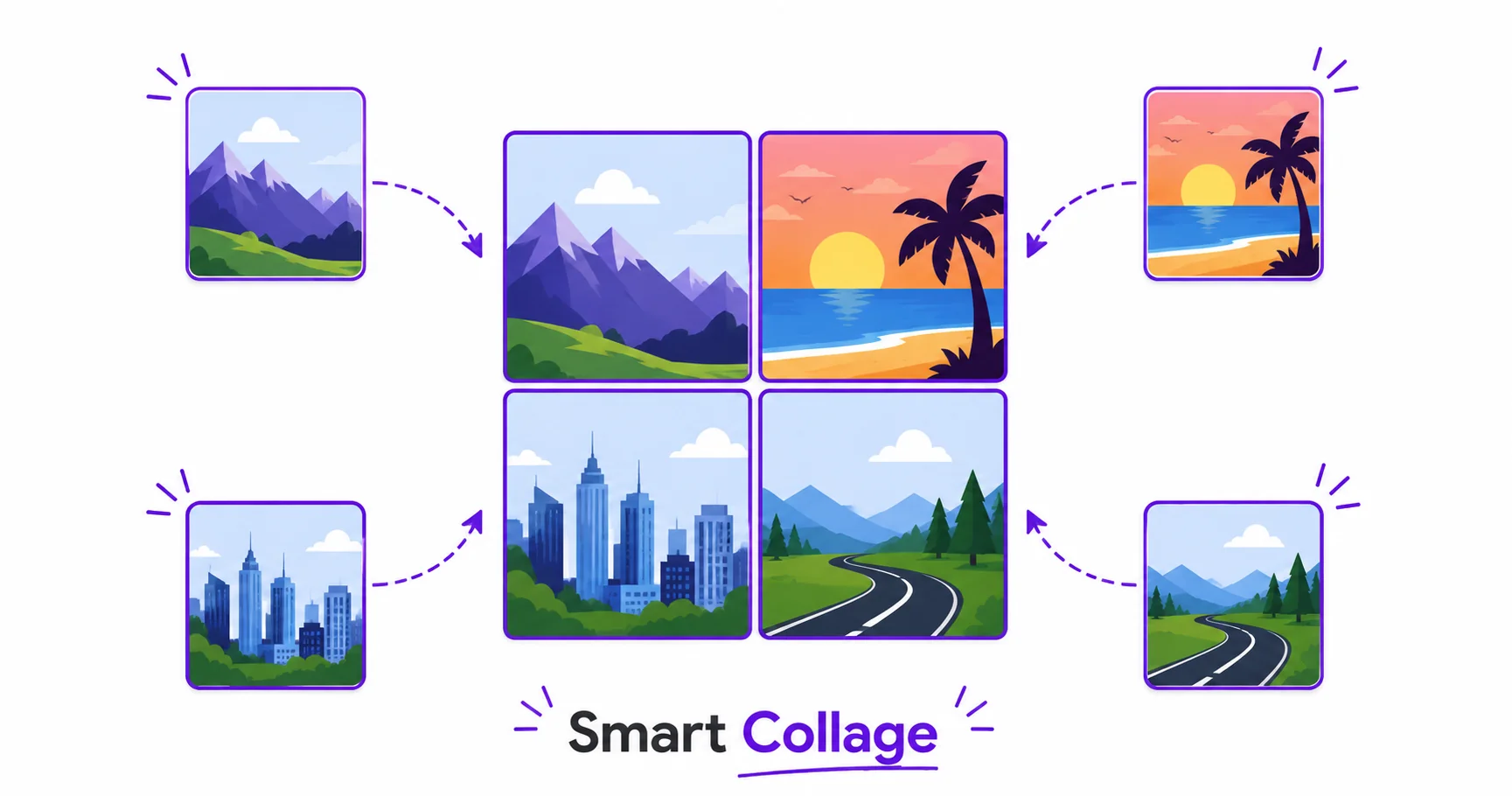
Sometimes one photo isn’t enough to tell the story. A collage lets you combine several shots into a single, shareable image, whether that’s a vacation recap, a product lineup, or a set of before-and-afters. Building one online takes just seconds, with no design software needed.
What Is a Photo Collage Tool?
A photo collage tool arranges multiple images into a single combined layout automatically, using preset grid templates so you don’t have to manually measure and align each photo yourself. Instead of opening a design program and placing each image by hand, you upload your photos and the layout is generated for you instantly.
Grid Layouts and Auto-Arrange
Most collage tools offer a range of grid styles, from simple 2×2 or 3×3 squares to more dynamic layouts with mixed photo sizes. Auto-arrange features automatically fit your uploaded photos into the chosen grid, cropping each one slightly if needed to keep the overall layout clean and evenly spaced.
How to Make a Photo Collage — Step-by-Step
Using ImageConvertNow’s smart collage tool:
- Go to imageconvertnow.com/smart-collage.
- Upload the photos you want to include.
- Choose a grid layout or let the tool auto-arrange your images.
- Download your finished collage.
Tips for a Better Collage
- Use photos with a similar overall brightness and color tone for a more cohesive-looking collage.
- Choose a grid layout that matches how many photos you actually have, rather than leaving empty slots or cramming in too many.
- If a specific photo needs cropping adjustments within the collage, edit it individually first using the photo editor.
- Once finished, resize your collage to fit the platform you plan to share it on using the resize tool.
Common Use Cases
- Travel and event recaps: Combine highlight photos from a trip or event into one shareable image.
- Product showcases: Display multiple product angles or variations together in a single graphic.
- Before-and-after comparisons: Show a transformation or progress across multiple photos at once.
- Social media posts: Create a single, scroll-stopping graphic instead of posting several separate images.
Frequently Asked Questions
1. How many photos can I include in one collage?
This depends on the grid layout you choose, though most tools support anywhere from a few photos in a simple grid up to a dozen or more in a denser layout.
2. Will my photos get cropped to fit the collage grid?
Yes, auto-arrange features typically crop each photo slightly to fit its assigned slot evenly, so it’s worth choosing photos where the main subject isn’t right at the edge of the frame.
3. Is making a photo collage online free?
Yes, ImageConvertNow’s smart collage tool is free to use with no account required.
4. What file format does the finished collage download as?
Collages typically download as a JPG or PNG file, both of which are widely supported for sharing and printing.
5. Can I rearrange the order of photos in the collage?
Most collage tools let you reorder or swap photo positions within the chosen grid layout before finalizing your download.
Conclusion
Turning several photos into one polished layout takes seconds with the free smart collage tool. Try it now for your next recap, showcase, or social post.
Once your collage is ready, you can resize it for a specific platform, prepare matching sizes with the social media pack tool, or learn more about image formats at Adobe’s file type guide, web.dev’s image optimization guide, and MDN’s image formats reference.