
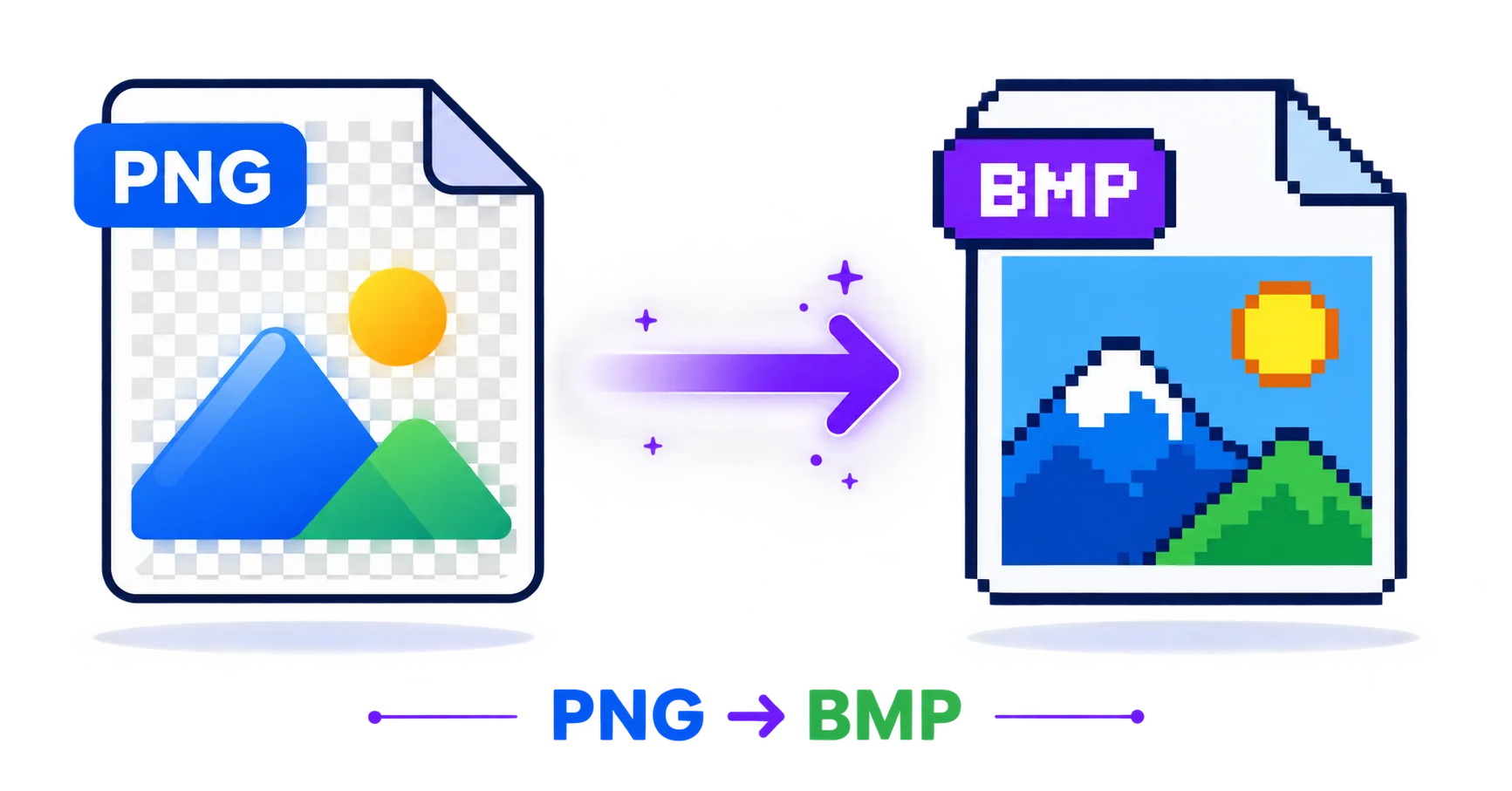
If your PNG has a transparent background, converting it to BMP comes with an important catch: BMP doesn’t support transparency at all. Before converting for an old system or legacy software, it helps to know exactly what will change.
What Happens to Transparency
PNG’s transparent areas will be filled with a solid background color, typically white, when converted to BMP, since the format has no concept of an alpha channel. If your image relies on transparency to look correct, it’s worth previewing the converted result before using it in whatever system requires the BMP format.
Why BMP Is Still Sometimes Required
BMP was the default image format built into early Windows systems, and certain legacy software, embedded systems, or older hardware interfaces were built specifically around it, as documented in the Library of Congress’s digital format documentation. If a system was never updated to support newer formats, BMP may be the only format it accepts.
How to Convert PNG to BMP — Step-by-Step
Using ImageConvertNow’s PNG to BMP tool:
- Go to imageconvertnow.com/png-to-bmp.
- Upload your PNG file.
- Click Convert and let the tool process the image.
- Download your finished BMP file.
Tips for Best Results
- If your PNG has transparency, decide on a background color you’re comfortable with before converting, since BMP will fill that area solid.
- Expect a larger file size after conversion, since BMP uses little to no compression compared to PNG.
- Keep your original PNG file, since BMP isn’t practical for everyday storage or sharing beyond the specific legacy requirement.
Common Use Cases
- Legacy software compatibility: Prepare graphics for older programs that only accept BMP.
- Embedded systems: Meet BMP requirements for hardware interfaces or specialized devices.
- Old design tools: Work with software predating broader modern format support.
- Specific technical specifications: Fulfill a BMP requirement from a system or tool specification.
Frequently Asked Questions
1. Will my transparent PNG background be preserved in the BMP?
No, BMP doesn’t support transparency, so any transparent areas will be filled with a solid background color, typically white, during conversion.
2. Will my BMP file be much larger than the original PNG?
Yes, BMP’s minimal compression typically results in a noticeably larger file size compared to PNG’s more efficient lossless compression.
3. Is PNG to BMP conversion free?
Yes, ImageConvertNow converts PNG to BMP for free with no account required.
4. Is BMP still commonly used today?
BMP is largely a legacy format now, mostly relevant for specific older software, embedded systems, or particular technical requirements rather than everyday use.
5. Can I convert my BMP back to a modern format later?
Yes, using the BMP to PNG tool or the BMP to JPG tool, you can convert back to a more practical modern format whenever needed.
Conclusion
When legacy software insists on BMP, converting takes just seconds, transparency loss and all. Try the free PNG to BMP converter now.
Need to modernize an old BMP file instead? Use the BMP to PNG tool or the BMP to JPG tool. Explore more of the toolkit: compress your images, remove backgrounds, convert a WebP file to JPG, or turn a GIF into a still PNG. Learn more at MDN’s image formats reference and ImageMagick’s conversion reference.