
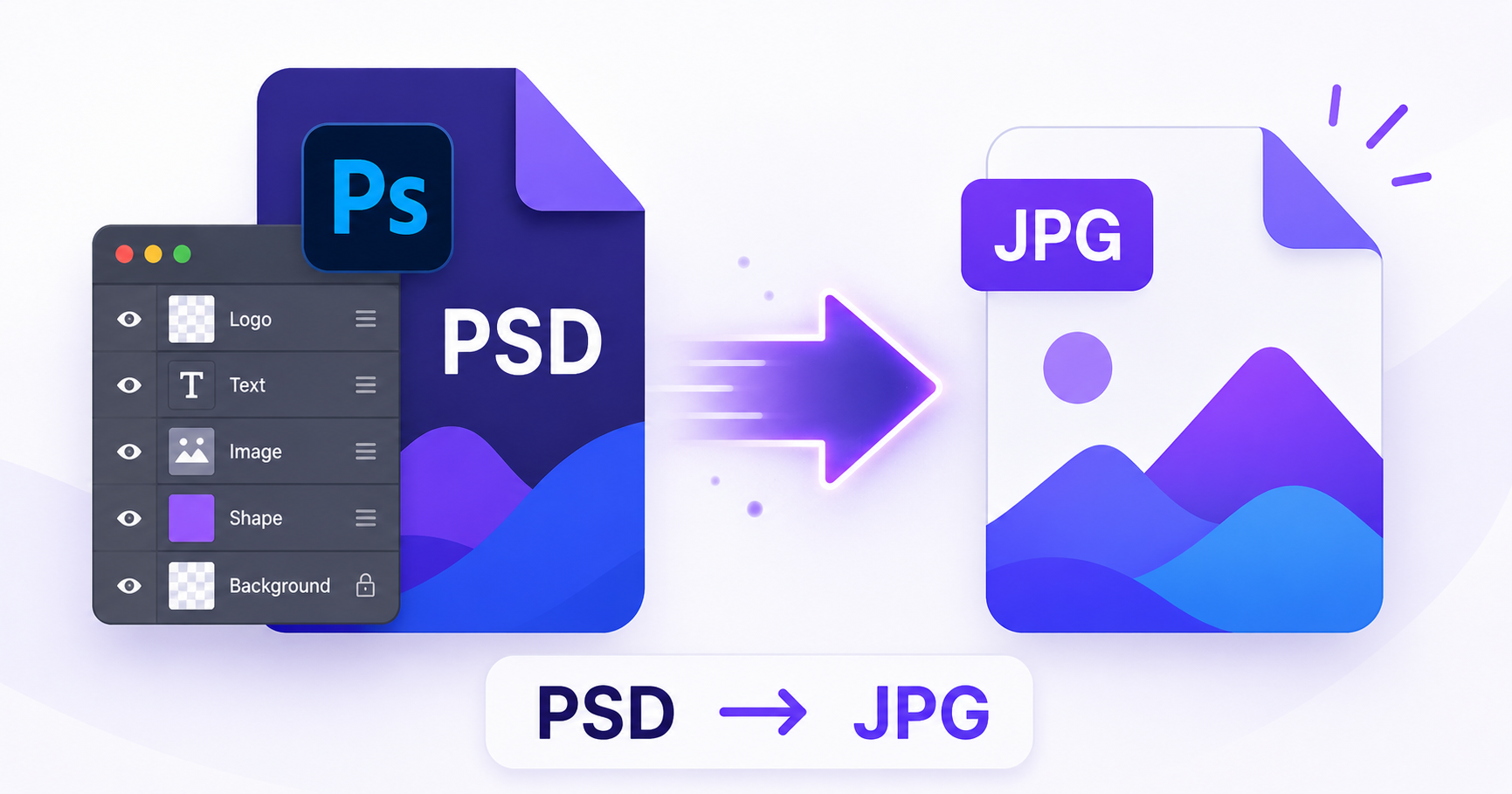
PSD files are great for design work, but they’re not built for sharing. If you don’t have Photoshop installed, or just need a quick JPG version of a design to send someone, converting online is the fastest way to get there.
What Are PSD Files?
PSD is Adobe Photoshop’s native file format, storing an image as multiple editable layers, along with masks, effects, and adjustment layers. This makes PSD ideal for ongoing design work, but the layered structure also means the files are large and can only be properly opened and edited in Photoshop or compatible software, as outlined in Adobe’s own guide to Photoshop file types.
Why Sharing PSD Files Is Impractical
Sending a raw PSD file to someone without Photoshop means they likely can’t open it at all. Even those with design software may not need the full editable layers, just the final flattened image. Converting to JPG solves this by combining all the layers into a single, universally viewable picture.
How to Flatten and Export PSD to JPG — Step-by-Step
Using ImageConvertNow’s PSD to JPG tool:
- Go to imageconvertnow.com/psd-to-jpg.
- Upload your PSD file.
- Click Convert. The tool automatically flattens all layers into a single image.
- Download your finished JPG file.
Tips for Best Results
- Double check that any hidden layers you want included are set to visible before exporting from your design tool, since hidden layers won’t appear in the flattened JPG.
- Use a high quality setting if the image will be printed or viewed at large sizes.
- If your PSD includes transparency you want to preserve, convert to PNG instead, since JPG cannot support transparent backgrounds.
Common Use Cases
- Client previews: Share a flattened design mockup without sending the full editable file.
- Social media and web use: Post a finished design without requiring viewers to have Photoshop.
- Portfolio images: Show off completed work in a universally viewable format.
- Quick sharing: Send a design over email or messaging apps without file compatibility issues.
Frequently Asked Questions
1. Will converting PSD to JPG lose my layers? Yes, converting flattens all layers into a single image. If you need to preserve the editable layers, keep your original PSD file as well.
2. Can I convert a PSD with transparency to JPG? JPG doesn’t support transparency, so any transparent areas will be filled with a solid background color during conversion. Use PNG instead if you need to keep transparency.
3. Is PSD to JPG conversion free? Yes, ImageConvertNow converts PSD to JPG for free with no account or software required.
4. Do I need Photoshop installed to convert a PSD file? No, that’s the whole point of an online converter. You can convert PSD files without ever opening Photoshop.
5. Will text and effects in my PSD show up correctly in the JPG? Yes, as long as those layers are visible in the original file, they’ll be included in the flattened JPG output.
Conclusion
You don’t need Photoshop to turn a PSD file into something shareable. Try the free PSD to JPG converter now and get a flattened image in seconds.
Need transparency preserved instead? Use the PSD to PNG tool, or compress your finished image for easier sharing.