
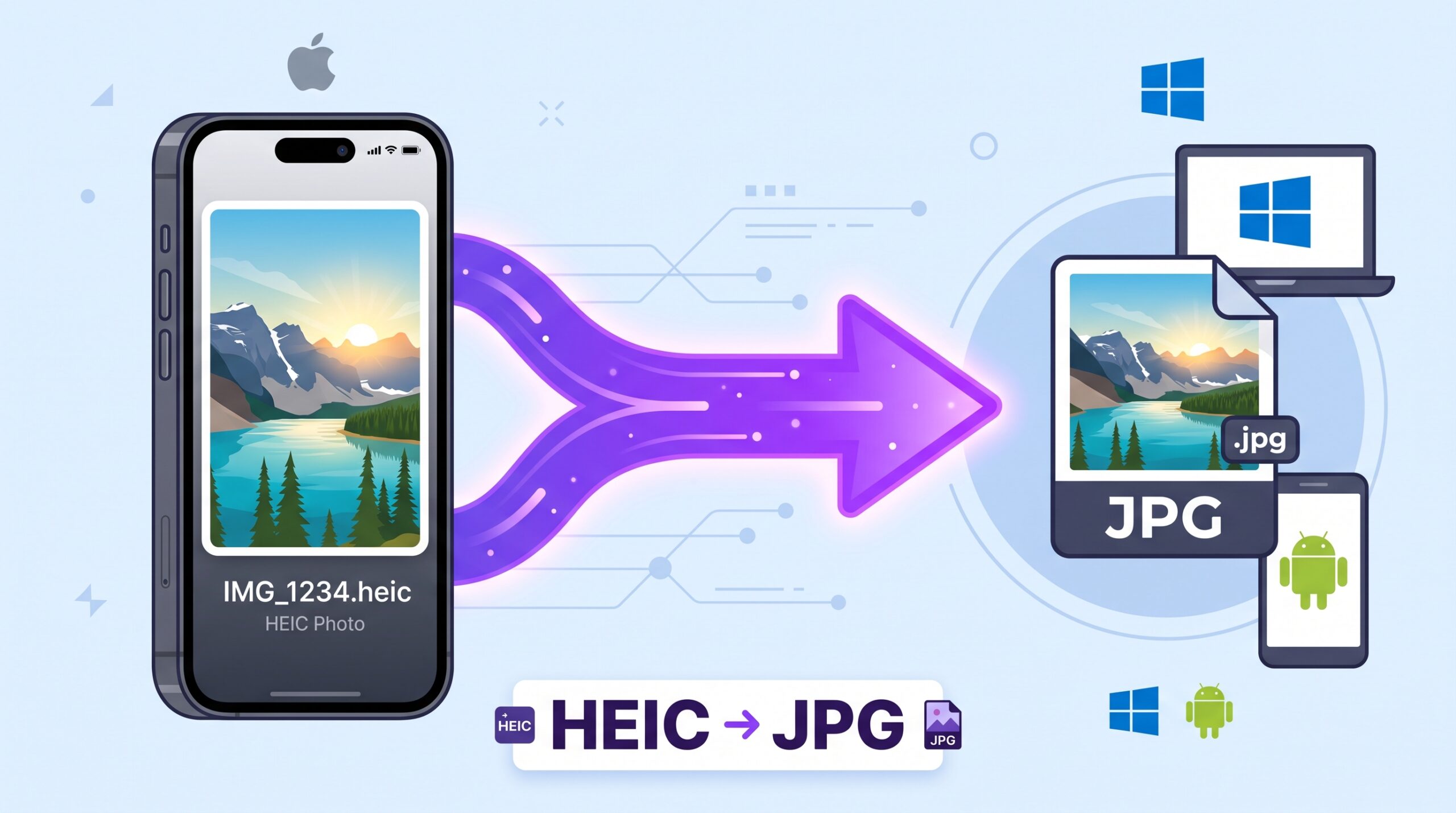
If you’ve ever transferred a photo from an iPhone to a Windows computer or Android device and found it won’t open, you’ve run into HEIC. Apple’s default photo format is efficient, but it isn’t universally supported. Converting to JPG fixes the problem in seconds.
What Is HEIC?
HEIC (High Efficiency Image Container) is Apple’s default photo format on iPhones and iPads, introduced to replace JPG as the default capture format. It uses more advanced compression than JPG, which means HEIC photos take up roughly half the storage space of an equivalent JPG while maintaining similar quality, as detailed in Adobe’s overview of image file types.
Why Can’t Windows or Android Open HEIC?
HEIC support depends on the software and operating system version. Many Windows PCs, older Android devices, and various apps and websites simply don’t recognize the format without an additional codec or converter installed. This is why photos that open fine on an iPhone often show up as broken or unsupported files elsewhere.
How to Convert HEIC to JPG Online — Step-by-Step
Using ImageConvertNow’s HEIC to JPG tool:
- Go to imageconvertnow.com/heic-to-jpg.
- Upload your HEIC photo (or several at once).
- Click Convert and let the tool process your images.
- Download your new JPG files, ready to open anywhere.
Tips for Best Results
- Convert in bulk if you have multiple HEIC photos from an iPhone backup or transfer, rather than one at a time.
- Keep quality settings high (85% or above) to preserve the original photo’s sharpness.
- If storage space matters to you, keep in mind JPG files will typically be larger than the original HEIC versions.
- For photos you plan to edit further, resize or compress them after converting to keep file sizes manageable.
Common Use Cases
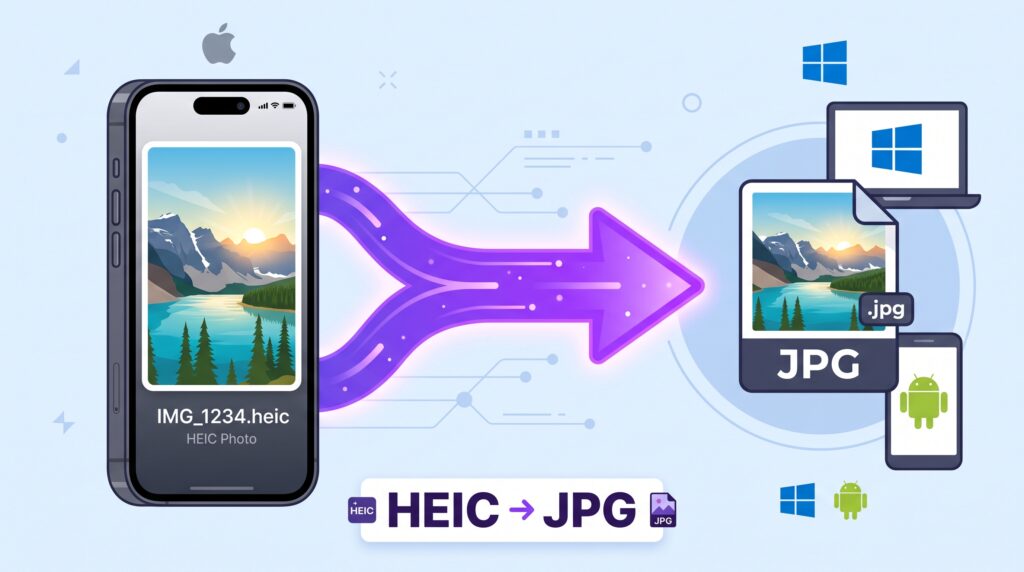
- Transferring photos to Windows or Android: Make sure every photo opens correctly on non-Apple devices.
- Uploading to websites and forms: Many platforms only accept JPG or PNG uploads, not HEIC.
- Sharing with others: Avoid sending files that recipients on non-Apple devices can’t open.
- Archiving and backups: Store photos in a universally readable format for long-term access.
Frequently Asked Questions
1. Why does my iPhone save photos as HEIC instead of JPG? HEIC offers better compression than JPG, meaning smaller file sizes at similar quality, which is why Apple made it the default capture format starting with iOS 11.
2. Will converting HEIC to JPG reduce photo quality? There is a small quality tradeoff since JPG compression differs from HEIC, but at a high quality setting the difference is generally not noticeable.
3. Is HEIC to JPG conversion free? Yes, ImageConvertNow converts HEIC to JPG for free with no account required.
4. Can I change my iPhone to save photos as JPG instead of HEIC automatically? Yes, iPhones have a camera format setting that can be switched to “Most Compatible,” which saves new photos as JPG instead of HEIC.
5. Will my photo’s metadata be preserved after conversion? Most converters preserve key metadata like the date taken, though this can vary by tool, so check the specific converter if metadata preservation is important to you.
Conclusion
HEIC photos are efficient on iPhone, but they don’t always travel well to other devices. Converting to JPG solves that instantly with the free HEIC to JPG converter.
Once converted, you can also convert to PNG if you need transparency, or compress your photos to save storage space.