
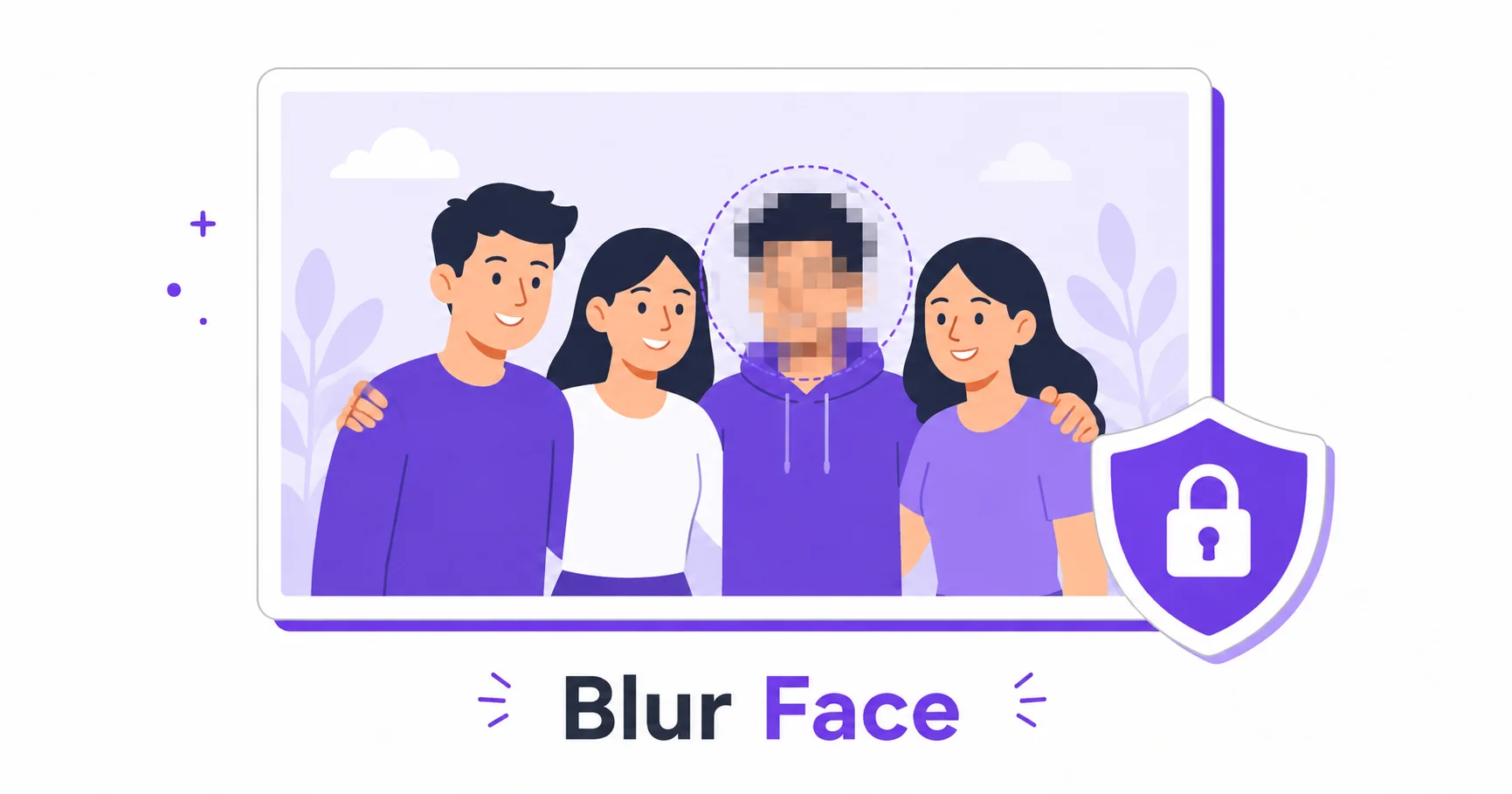
Not every face in a photo needs to be visible online. Whether it’s a bystander in the background, a minor, or someone who simply didn’t consent to being shared, blurring a face protects their privacy without ruining the rest of the photo.
Why Blurring Faces Matters
Sharing photos publicly, whether on social media, a blog, or a business website, often means including people who aren’t the intended subject. Blurring their faces protects their privacy, reduces legal risk around consent, and is often standard practice for content involving minors, bystanders, or sensitive situations like workplace or medical photography.
Manual vs Automatic Face Detection
Manually blurring a face means selecting the exact area yourself, which gives you precise control but takes longer, especially with multiple people in a photo. Automatic face detection uses AI to locate faces in an image and apply the blur instantly, which is much faster and works well for most standard photos, though it’s worth double-checking the result on group shots or unusual angles.
How to Blur a Face in a Photo — Step-by-Step
Using ImageConvertNow’s blur face tool:
- Go to imageconvertnow.com/blur-face.
- Upload your photo.
- Let automatic detection locate faces, or manually select the area to blur.
- Download your finished, privacy-protected image.
Tips for Best Results
- Review automatically detected faces before downloading, especially in group photos or shots with partial faces or unusual angles.
- For extra privacy, combine blurring with a watermark if you’re sharing the image publicly and want to protect your own work as well.
- If you need finer control over the blur area, use the photo editor to touch up the result manually.
Common Use Cases
- Social media sharing: Protect bystanders or non-consenting individuals before posting publicly.
- Journalism and blogging: Anonymize sources or subjects who need to remain unidentified.
- Business and workplace photos: Blur employees or customers who haven’t given consent to be shown.
- Content involving minors: Protect children’s identities in photos shared online.
Frequently Asked Questions
1. Does the tool detect faces automatically, or do I have to select them manually?
Most tools, including ImageConvertNow, offer automatic face detection, though you can also manually select an area if the automatic detection misses a face or you need more precise control.
2. Will the blur look obviously edited?
A well-applied blur is subtle and professional-looking, though the exact appearance depends on the blur intensity and how well it’s blended with the surrounding image.
3. Is blurring a face in a photo free?
Yes, ImageConvertNow’s blur face tool is free to use with no account required.
4. Can I blur multiple faces in one photo?
Yes, automatic detection typically identifies all faces in the image, and you can also manually select additional areas if needed.
5. Is blurring a face enough to fully anonymize someone?
Blurring the face significantly reduces identifiability, but other visible details like distinctive clothing, tattoos, or surroundings could still potentially identify someone, so consider the full context of the photo.
Conclusion
Protecting someone’s privacy in a photo takes just seconds with the free blur face tool. Try it now before sharing your next photo publicly.
You can also add a watermark to protect your own work, fine-tune the result in the photo editor, or resize and compress your finished image before uploading. For more on image handling, see web.dev’s image optimization guide and MDN’s image formats reference.