
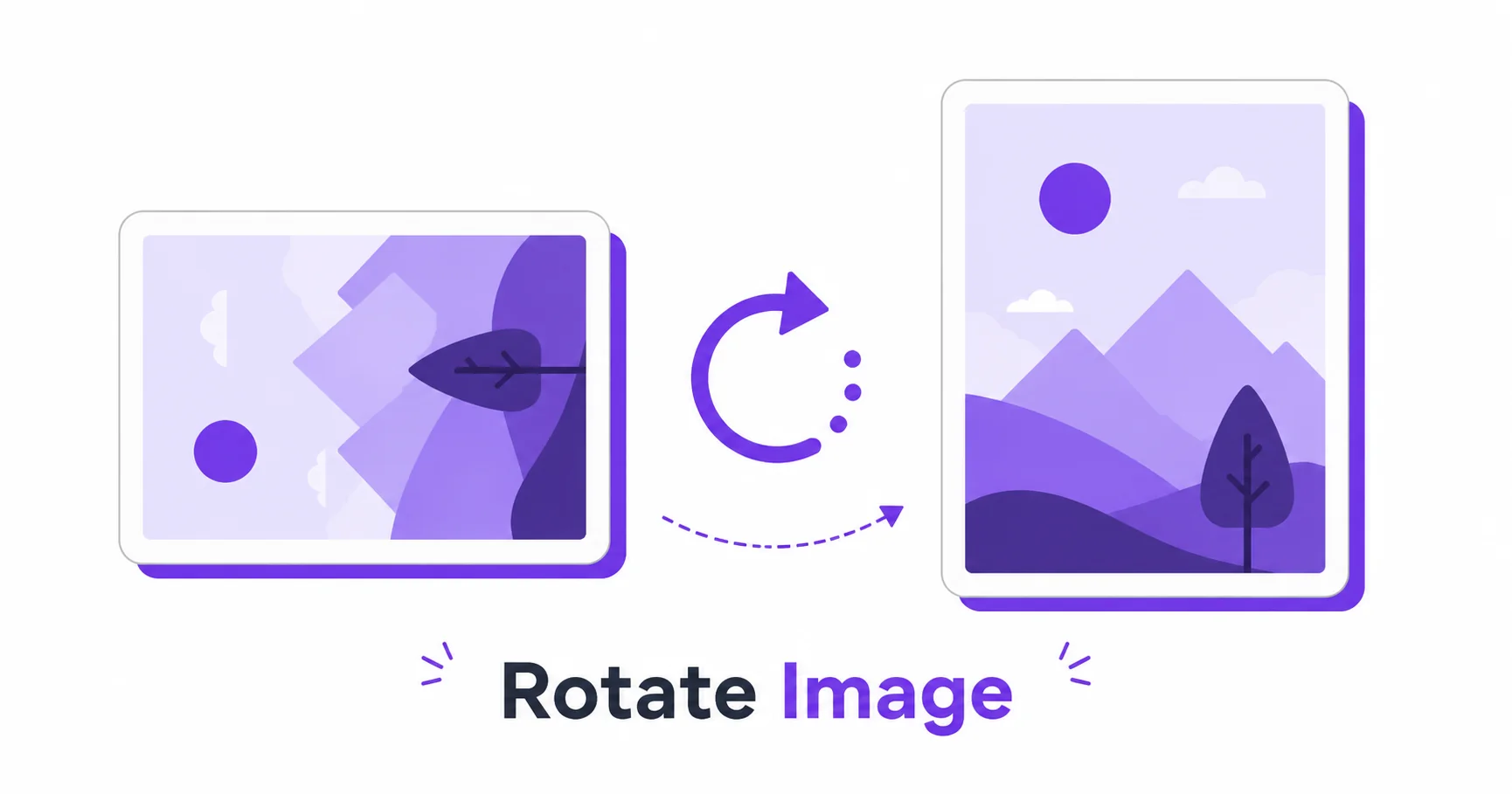
A photo taken sideways or upside down can throw off an entire page layout, presentation, or social post. Fixing it doesn’t require design software, just a few clicks online.
How to Rotate an Image Online — Step-by-Step
Using ImageConvertNow’s rotate tool:
- Go to imageconvertnow.com/rotate-image.
- Upload the image you want to rotate.
- Choose a quick 90-degree preset, or drag to set a custom angle.
- Click Rotate and download your corrected image.
Why Photos End Up Sideways in the First Place
Most sideways or upside-down photos happen because of how a phone or camera records its orientation data at the moment of capture. Some apps and platforms read that orientation data correctly and display the photo upright, while others ignore it and show the raw image exactly as it was saved, sideways included. Rotating the file directly, rather than relying on orientation metadata, guarantees it displays correctly everywhere.
Quick Presets vs Custom Angle
A 90-degree preset is the fastest fix for a photo that’s simply sideways or upside down. For images that are only slightly tilted, like a scanned document or a photo taken at a small angle, a custom angle rotation lets you straighten the image precisely instead of overcorrecting with a full 90-degree turn.
Common Use Cases
- Phone photo fixes: Correct orientation issues that show up after uploading to certain websites or apps.
- Scanned documents: Straighten pages that were slightly crooked when scanned.
- Presentation slides: Fix sideways images before inserting them into a deck.
- E-commerce listings: Ensure product photos display correctly and consistently across a storefront.
Frequently Asked Questions
1. Will rotating my image reduce its quality?
No, rotating repositions the existing pixels without compressing or discarding any image data, so quality stays the same.
2. Why does my photo look correct on my phone but sideways everywhere else?
This usually happens because your phone reads the photo’s embedded orientation data correctly, while the platform you uploaded to does not, displaying the raw, unrotated file instead.
3. Is rotating images online free?
Yes, ImageConvertNow offers free image rotation with no account required.
4. Can I rotate an image to a custom angle, not just 90 degrees?
Yes, most rotate tools let you drag to set any custom angle in addition to standard 90-degree presets, which is useful for straightening slightly tilted photos.
5. Should I rotate before or after cropping an image?
Rotating first is generally recommended, since straightening the image changes its edges, which affects what you’ll want to crop afterward.
Conclusion
A sideways photo is a quick fix, not a redo. Straighten yours in seconds with the free rotate tool.
Once your image is upright, you might also want to crop it for better composition, touch it up in the photo editor, or resize it and compress it for the platform you’re uploading to. For more on image handling, see web.dev’s image optimization guide and MDN’s image formats reference.