
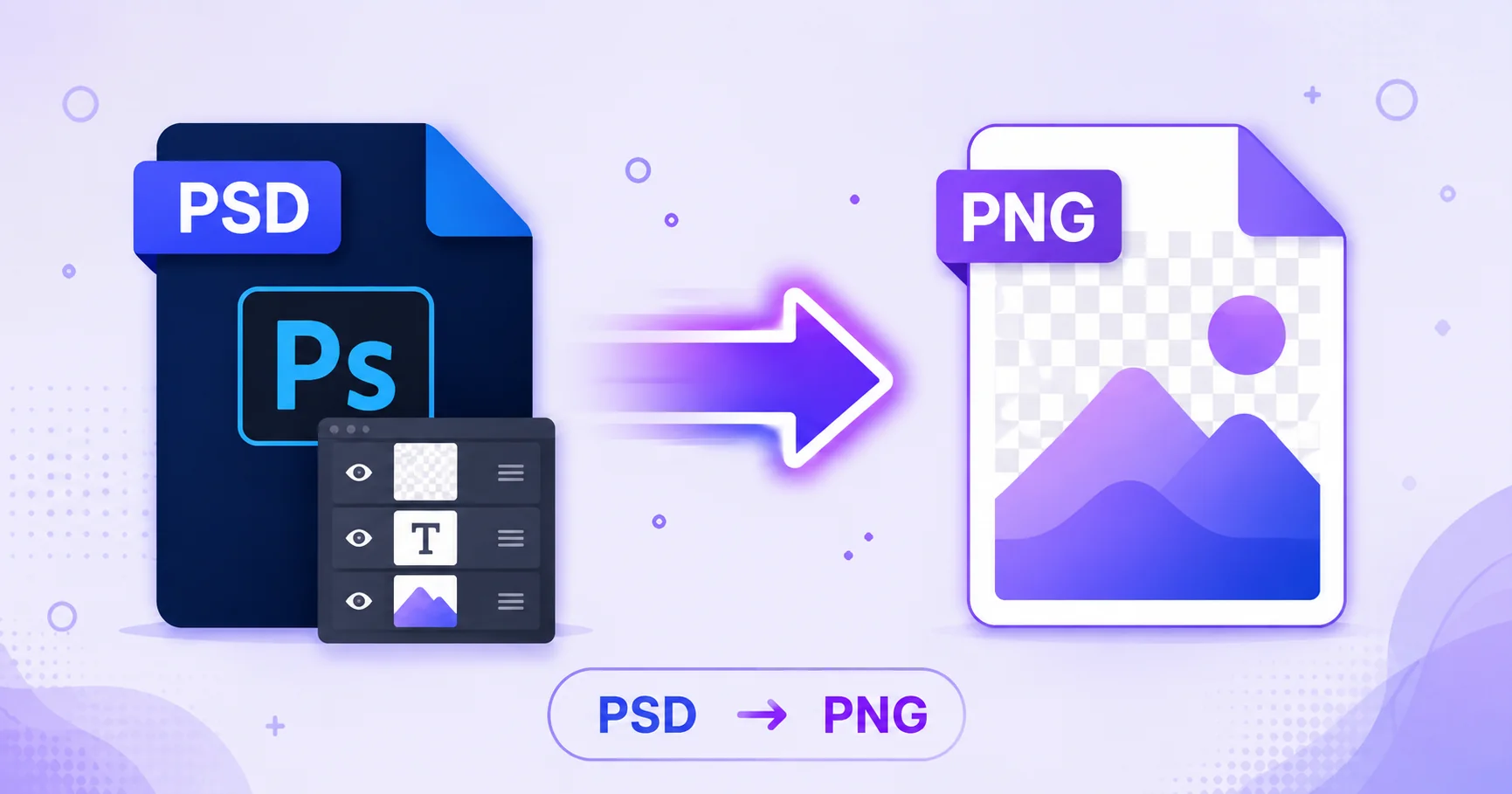
If your PSD design has a transparent background, like a logo or a cutout graphic, you don’t want to lose that when sharing it. Converting to PNG flattens your layers into a single image while keeping any transparency fully intact, and you don’t need Photoshop to do it.
What Are PSD Files?
PSD is Adobe Photoshop’s native file format, storing an image as multiple editable layers along with masks, effects, and adjustment layers. This layered structure makes PSD ideal for ongoing design work, but it also means PSD files can only be properly opened and edited in Photoshop or compatible software, as outlined in Adobe’s guide to Photoshop file types.
Why Choose PNG Over JPG for PSD Conversion
If your PSD file includes a transparent background, converting to PNG is the only way to preserve it, since JPG cannot support transparency at all. PNG is also lossless, keeping every pixel of detail intact rather than applying compression that could soften sharp edges or fine text.
How to Convert PSD to PNG — Step-by-Step
Using ImageConvertNow’s PSD to PNG tool:
- Go to imageconvertnow.com/psd-to-png.
- Upload your PSD file.
- Click Convert. The tool automatically flattens all layers into a single image.
- Download your finished PNG file, with transparency preserved.
Tips for Best Results
- Double check that any hidden layers you want included are set to visible in your PSD before exporting, since hidden layers won’t appear in the flattened PNG.
- If your original PSD doesn’t have transparency but you need to remove the background, try the background remover on your converted PNG.
- Keep your original PSD file if you’ll need to make edits later, since the converted PNG can’t be un-flattened back into layers.
Common Use Cases
- Logos and branding assets: Preserve transparent backgrounds for use on any color or image behind them.
- Web graphics: Export design elements with clean, transparent edges for website use.
- Client previews: Share a flattened design mockup without requiring the client to have Photoshop.
- Sticker and overlay design: Prepare transparent PNG assets for social media or messaging apps.
Frequently Asked Questions
1. Will my transparent background be preserved when converting PSD to PNG?
Yes, PNG fully supports transparency, so any transparent areas in your original PSD file will carry over correctly to the converted image.
2. Will converting PSD to PNG lose my layers?
Yes, converting flattens all layers into a single image. Keep your original PSD file if you need the editable layers preserved.
3. Is PSD to PNG conversion free?
Yes, ImageConvertNow converts PSD to PNG for free with no account or software required.
4. Do I need Photoshop installed to convert a PSD file?
No, that’s the advantage of an online converter. You can convert PSD files to PNG without ever opening Photoshop.
5. Should I convert my PSD to PNG or JPG?
Choose PNG if your file has transparency or you need lossless quality, and JPG if you want the smallest file size and don’t need a transparent background.
Conclusion
When transparency matters, converting PSD to PNG is the right choice. Try the free PSD to PNG converter now and get a flattened image with transparency intact.
Don’t need transparency? Use the PSD to JPG tool instead, or compress your finished PNG for easier sharing. Learn more at MDN’s image formats reference and Adobe’s file type guide.