
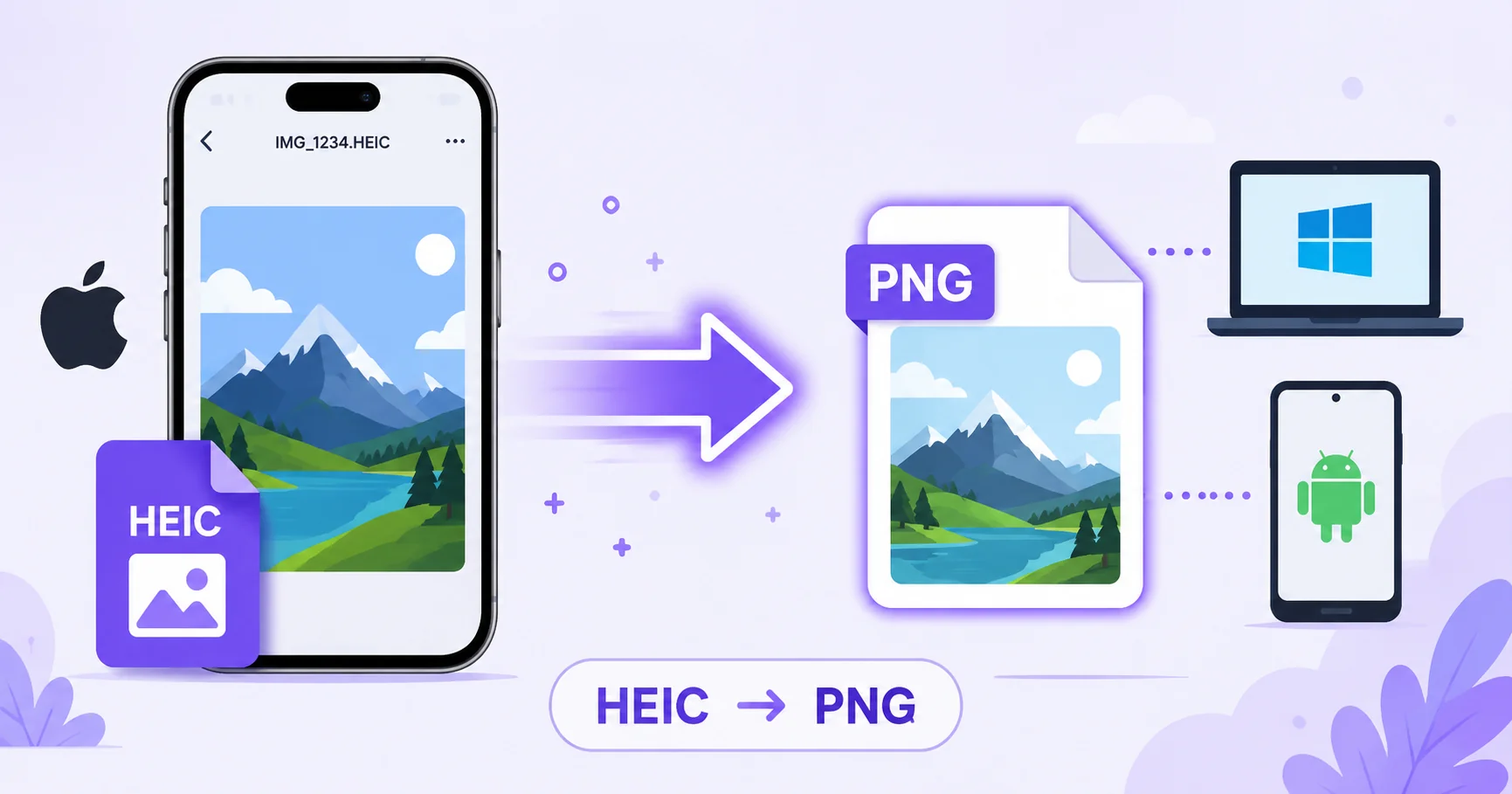
iPhones save photos as HEIC by default, an efficient format that works great on Apple devices but can cause headaches everywhere else. If you need a lossless, universally compatible version of an iPhone photo, converting to PNG solves the problem in seconds.
What Is HEIC?
HEIC (High Efficiency Image Container) is Apple’s default photo format on iPhones and iPads, using advanced compression that produces smaller files than JPG at similar quality. It became the default capture format starting with iOS 11, as noted in Adobe’s overview of image file types.
Why Convert to PNG Instead of JPG
While JPG is the most common target format for HEIC conversion, PNG has a key advantage: it’s lossless, meaning it preserves every bit of detail from the original photo without any additional compression. PNG is the better choice when you need the highest possible quality, plan to edit the photo further, or need to preserve any transparency present in the original file.
How to Convert HEIC to PNG Online — Step-by-Step
Using ImageConvertNow’s HEIC to PNG tool:
- Go to imageconvertnow.com/heic-to-png.
- Upload your HEIC photo, or several at once.
- Click Convert and let the tool process your images.
- Download your new PNG files, ready to open anywhere.
Tips for Best Results
- Convert in bulk if you have multiple HEIC photos from an iPhone backup or transfer, rather than one at a time.
- Keep in mind PNG files will generally be larger than the original HEIC, since PNG doesn’t compress as aggressively.
- If file size matters more than lossless quality, the HEIC to JPG tool may be a better fit.
- For photos you plan to edit further, use the resize tool to prepare them for your specific project.
Common Use Cases
- Design work: Bring iPhone photos into design software that works best with lossless PNG files.
- Transferring to Windows or Android: Ensure every photo opens correctly on non-Apple devices.
- Archiving and backups: Store photos in a universally readable, lossless format for long-term access.
- Web use requiring transparency: Preserve any transparent elements present in the original HEIC file.
Frequently Asked Questions
1. Should I convert HEIC to PNG or JPG?
Choose PNG if you need lossless quality or plan to edit the photo further, and JPG if you want the smallest possible file size for everyday sharing.
2. Will converting HEIC to PNG improve photo quality?
No, converting to PNG preserves whatever quality the original HEIC photo already had; it doesn’t add detail that wasn’t captured originally.
3. Is HEIC to PNG conversion free?
Yes, ImageConvertNow converts HEIC to PNG for free with no account required.
4. Why is my converted PNG file so much larger than the original HEIC?
HEIC’s advanced compression is more efficient than PNG’s lossless format, so converting typically increases file size even though no quality is lost.
5. Can I convert multiple HEIC photos to PNG at once?
Yes, many online converters, including ImageConvertNow, support processing several photos together instead of one at a time.
Conclusion
When you need a lossless, universally compatible version of an iPhone photo, converting HEIC to PNG gets you there in seconds. Try the free HEIC to PNG converter now.
Need a smaller file instead? Use the HEIC to JPG tool, or compress your finished PNG to save storage space. Learn more at MDN’s image formats reference and web.dev’s image optimization guide.