
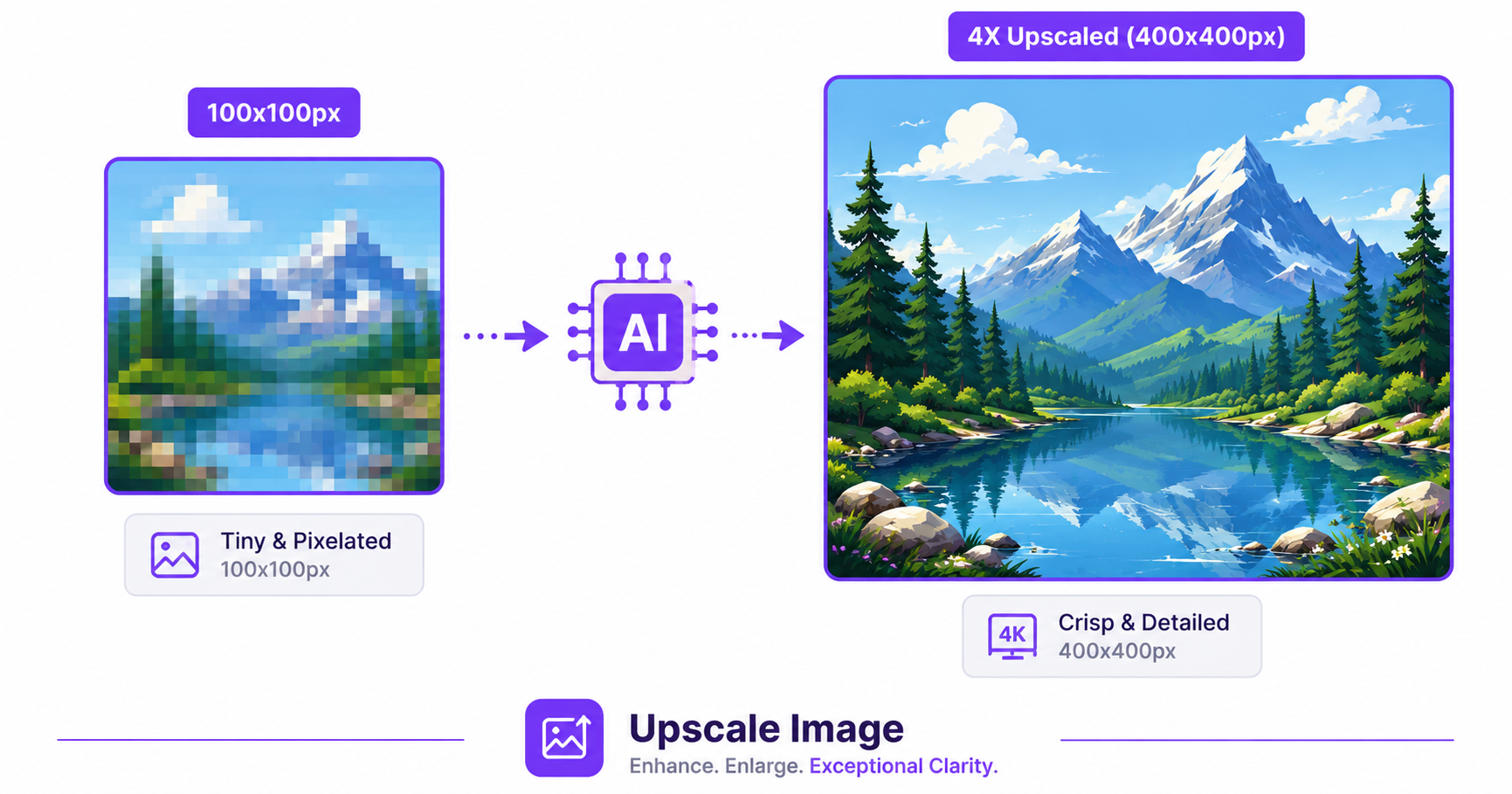
An old photo, a small downloaded image, or a low-res file from years ago can look pixelated and rough the moment you try to enlarge it. AI upscaling changes that, intelligently adding detail as it increases resolution instead of just stretching and blurring the original pixels.
What Is Image Upscaling?
Traditional resizing simply stretches existing pixels to fill a larger space, which quickly leads to a blurry, blocky result. AI upscaling works differently: it uses a trained model to predict and generate plausible new detail as it increases resolution, producing a noticeably sharper result than basic stretching, especially at higher scale factors like 2x or 4x the original size.
When You’d Want to Upscale a Photo
- Old or archived photos: Bring low-resolution scans or early digital camera shots up to a size usable for printing or modern displays.
- Small downloads: Improve a thumbnail-sized image you need to use at a larger display size.
- Social media assets: Enlarge a small logo or graphic to fit a bigger banner or profile space without visible pixelation.
- Print preparation: Increase resolution for images that need to be printed larger than their original size supports.
How to Upscale an Image — Step-by-Step
Using ImageConvertNow’s upscale tool:
- Go to imageconvertnow.com/upscale-image.
- Upload your low-resolution image.
- Choose your desired scale factor (such as 2x or 4x).
- Click Upscale and download your higher-resolution result.
Tips for Best Results
- Start with the best-quality original you have access to; upscaling improves resolution but can’t recover detail that was severely degraded or corrupted in the source file.
- For extreme enlargements, consider upscaling in smaller increments (like 2x, then 2x again) rather than jumping straight to a very high scale factor.
- Pair upscaling with AI enhancement for photos that also need color and sharpness correction.
- If noise or grain is visible in your low-res original, run it through noise reduction before or after upscaling for a cleaner result.
Common Use Cases
- Restoring old family photos: Enlarge scanned prints for framing or digital sharing at a larger size.
- E-commerce product images: Improve small supplier-provided photos before using them in a storefront listing.
- Design projects: Scale up a small logo or icon for use in a larger layout without visible pixelation.
- Social media banners: Enlarge a smaller image to properly fill a cover photo or banner space.
Frequently Asked Questions
1. Does AI upscaling actually add real detail, or just make the image bigger? AI upscaling generates plausible new detail based on patterns learned from training data, producing a sharper result than simple stretching, though it cannot perfectly recreate detail that was never present in the original photo.
2. How large can I upscale an image? Most tools support common scale factors like 2x and 4x, though extremely small or low-quality originals will have more visible limitations at higher scale factors.
3. Is upscaling images online free? Yes, ImageConvertNow offers free AI-powered image upscaling with no account required.
4. Will upscaling fix a blurry photo? Upscaling primarily increases resolution; for blur correction specifically, pairing it with an AI enhancement tool tends to give better overall results.
5. Is there a limit to how much I can enlarge an image before quality suffers? Yes, every image has practical limits. Extremely small or heavily compressed originals will show more visible artifacts at very high scale factors than a cleaner, higher-quality starting image.
Conclusion
Turning a small, low-resolution photo into something sharp and usable is easy with AI. Try the free image upscaler now and see how much detail can be recovered.
For the best overall result, pair upscaling with AI enhancement or clean up grain first with noise reduction.