
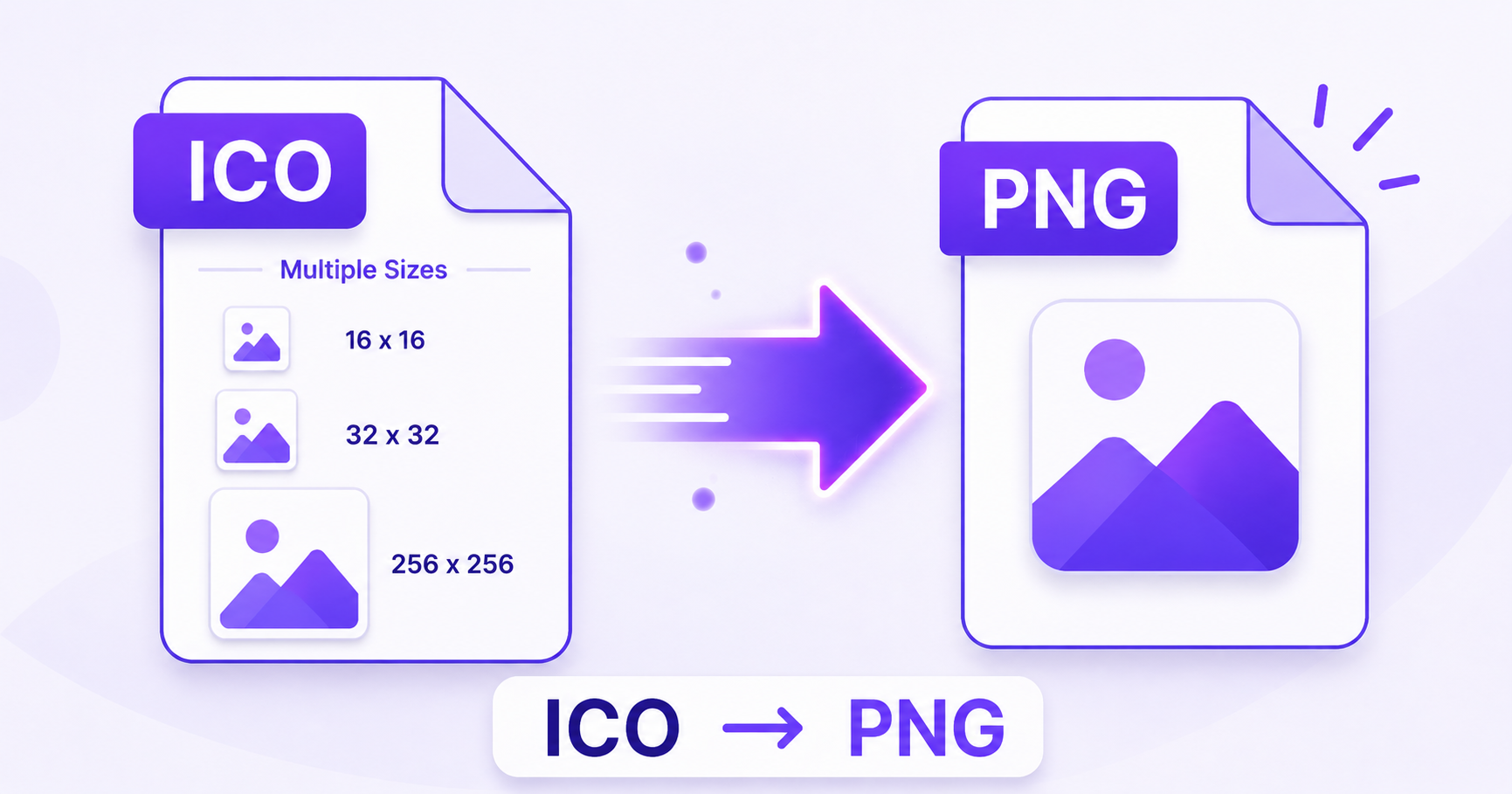
ICO files are everywhere on the web and on Windows, but they’re not the easiest format to work with in design tools or image editors. If you need to grab a favicon or Windows icon as a regular image file, converting to PNG makes it usable anywhere.
What Are ICO Files?
ICO is the standard format for Windows application icons and website favicons, the small icon that appears in a browser tab. Unlike most image formats, a single ICO file can actually contain multiple versions of the same icon at different sizes, letting the operating system or browser pick the most appropriate one for each context, as covered in MDN’s guide to image formats.
Why You’d Want a PNG Version
While ICO works well for its intended purpose, most image editors, design tools, and general use cases work better with a standard PNG. Converting lets you:
- Edit the icon design in a regular photo or graphic editor
- Use the icon image in a presentation, document, or webpage outside its original context
- Extract a specific size from a multi-resolution ICO file as a standalone image
- Repurpose an old favicon design for a new project
How to Convert ICO to PNG — Step-by-Step
Using ImageConvertNow’s ICO to PNG tool:
- Go to imageconvertnow.com/ico-to-png.
- Upload your ICO file.
- Click Convert to extract the image as a PNG.
- Download your finished PNG file.
Tips for Best Results
- If your ICO file contains multiple sizes, check whether your converter lets you choose which resolution to extract, since larger sizes give you more detail to work with.
- PNG preserves transparency, so any transparent parts of your icon will carry over cleanly.
- Once converted, you can resize the PNG to whatever dimensions you need for your new use case.
Common Use Cases
- Redesigning a favicon: Extract the current icon as PNG to use as a reference or starting point.
- Design portfolios: Showcase an icon design in a standard image format.
- Rebuilding old branding assets: Recover a usable image from a legacy ICO file when the original source files are lost.
- Documentation and guides: Insert an icon image into a tutorial or presentation.
Frequently Asked Questions
1. Can an ICO file contain more than one image? Yes, ICO files commonly bundle multiple sizes of the same icon (like 16×16, 32×32, and 256×256) in a single file, so the right size can be used in different contexts.
2. Will converting to PNG keep the icon’s transparency? Yes, PNG fully supports transparency, so transparent areas of the original icon will be preserved in the converted file.
3. Is ICO to PNG conversion free? Yes, ImageConvertNow converts ICO to PNG for free with no account required.
4. Why would I need to convert a favicon back to PNG? This is common when redesigning a website’s branding, since designers often want to see or edit the existing favicon before creating a new one.
5. Can I convert a PNG back into an ICO file for a new favicon? Yes, using the PNG to ICO tool, you can turn any PNG image into a proper favicon file.
Conclusion
Getting a usable image out of an ICO file is quick and simple with the free ICO to PNG converter.
Once you have your PNG, you can resize it for your needs, or use the PNG to ICO tool to create a brand-new favicon for your site.