
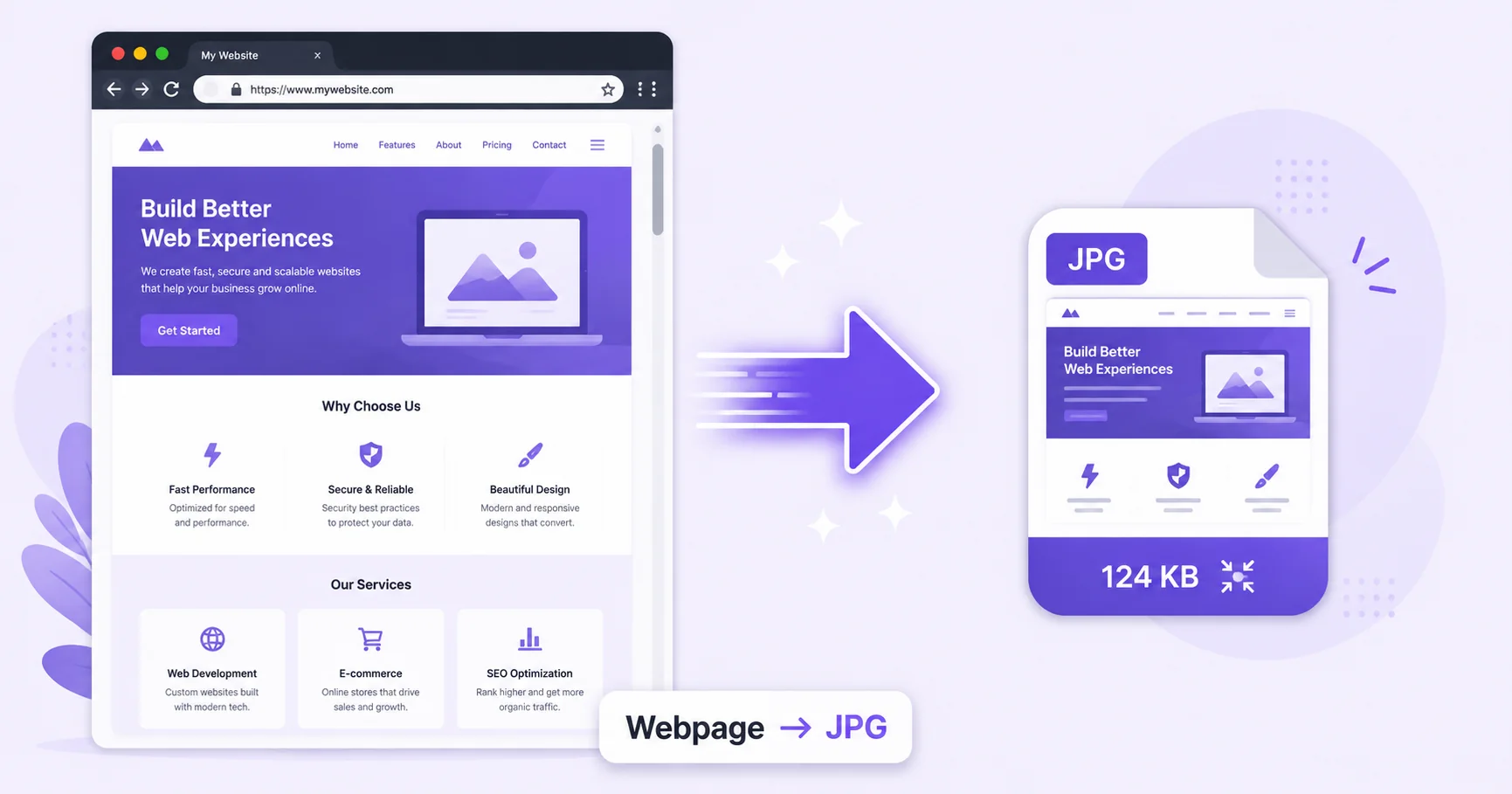
Sometimes you don’t need a pixel-perfect archival copy of a webpage, just a lightweight, shareable image of what it looked like. Capturing a website as JPG gives you a smaller file that’s easy to email, upload, or drop into a document.
Why Capture a Website as JPG
- Smaller file size: JPG’s compression keeps the file light, which is useful for sharing or emailing screenshots.
- Universal compatibility: JPG opens everywhere without any special software.
- Full-page capture: Get the entire page, not just what fits on your screen, in a single image.
- Quick sharing: A smaller file uploads and sends faster than a lossless format.
JPG vs PNG for Website Screenshots
PNG tends to keep text and sharp UI elements crisper since it uses lossless compression, while JPG produces a noticeably smaller file at the cost of some compression artifacts around fine details. For quick sharing where file size matters more than pixel-perfect clarity, JPG is often the more practical choice, as outlined in Adobe’s overview of image file types.
How to Screenshot a Website as JPG — Step-by-Step
Using ImageConvertNow’s HTML to JPG tool:
- Go to imageconvertnow.com/html-to-jpg.
- Paste in the URL of the webpage you want to capture, or upload your HTML file.
- Click Convert and let the tool render the full page.
- Download your finished JPG screenshot.
Tips for Best Results
- Give JavaScript-heavy pages a moment to fully load before capturing, so dynamic content isn’t missed.
- If text sharpness matters more than file size for your use case, consider the HTML to PNG tool instead.
- Resize your captured screenshot afterward with the resize tool if you need it at a specific dimension.
Common Use Cases
- Quick sharing: Send a lightweight image of a webpage over email or messaging apps.
- Social media posts: Share a visual preview of an article or page you found interesting.
- Reports and presentations: Insert a webpage capture into a slide deck without a large file weighing it down.
- Quick reference: Save a lightweight visual snapshot of a page for later review.
Frequently Asked Questions
1. Will the JPG capture the full page or just what’s on screen?
The tool renders the entire page, including content below the fold, into a single continuous image, not just the visible viewport.
2. Will text look blurry in a JPG screenshot?
At a reasonable quality setting, text generally stays legible, though very fine text may show slightly more softening compared to a PNG capture.
3. Is screenshotting a website as JPG free?
Yes, ImageConvertNow converts webpages to JPG for free with no account required.
4. Can I capture a page that requires a login?
Generally no, since most online tools can only access publicly available pages, not ones behind authentication.
5. Should I choose JPG or PNG for my screenshot?
Choose JPG for smaller, easier-to-share files, or PNG when you need the sharpest possible text and UI detail.
Conclusion
When you need a lightweight, shareable image of a webpage, capturing it as JPG gets the job done in seconds with the free HTML to JPG tool.
Need sharper text instead? Try the HTML to PNG tool, or compress your screenshot further for even faster sharing. Learn more at MDN’s image formats reference and W3Schools’ HTML images guide.