
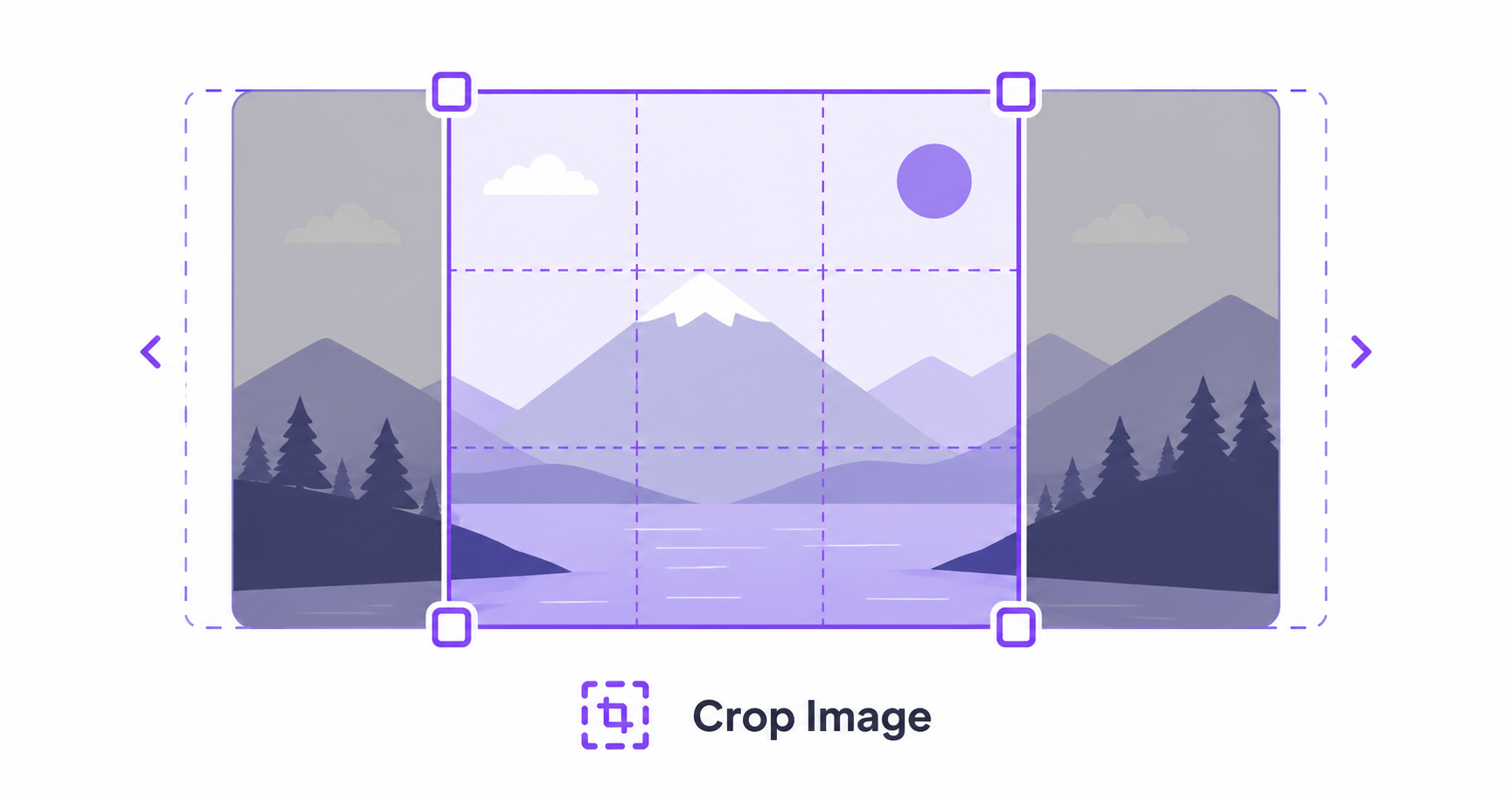
A great photo can still look off if it’s framed wrong for where it’s being used. Cropping fixes that, whether you’re squaring up a profile picture, trimming a banner image, or just tightening the composition. Doing it online takes seconds and needs no design software.
Why Cropping Matters
Every platform and use case has its own ideal shape. A photo that looks great as a landscape banner might get awkwardly squeezed or stretched if forced into a square profile picture slot. Cropping lets you control exactly what’s shown and in what proportions, keeping your images looking intentional rather than automatically resized by whatever platform you’re uploading to.
Common Aspect Ratios and When to Use Them
- 1:1 (Square): Ideal for profile pictures, Instagram feed posts, and app icons.
- 16:9 (Widescreen): Standard for video thumbnails, presentation slides, and website banners.
- 4:3 (Standard): Common for traditional photography and some print formats.
- 9:16 (Vertical): Built for Instagram Stories, TikTok, and other mobile-first vertical content.
Choosing the right ratio before cropping saves you from having to guess or manually resize afterward.
How to Crop Images Online — Step-by-Step
Using ImageConvertNow’s crop tool:
- Go to imageconvertnow.com/crop-image.
- Upload the image you want to crop.
- Select a preset aspect ratio, or drag the crop handles freely.
- Click Crop and download your finished image.
Tips for Better Crops
- Keep the main subject centered or positioned according to the rule of thirds for a more visually balanced result.
- Avoid cropping too tightly around faces or important details, since some platforms apply their own circular or rounded crops on top of yours.
- When cropping for a specific platform, check that platform’s current recommended dimensions to avoid unexpected re-cropping after upload.
- Combine cropping with resizing to hit an exact pixel dimension after establishing your desired aspect ratio.
Common Use Cases
- Profile pictures: Square crops for social media, professional headshots, and app avatars.
- Social media posts: Match each platform’s ideal feed, story, or banner dimensions.
- Website design: Crop hero images and thumbnails to fit specific layout spaces cleanly.
- Print materials: Adjust composition for flyers, brochures, or photo prints with specific size requirements.
Frequently Asked Questions
1. Will cropping reduce my image’s quality? No, cropping only removes parts of the image outside your selection; it doesn’t compress or degrade the quality of the remaining portion.
2. What’s the best aspect ratio for a profile picture? A 1:1 square crop works for the vast majority of platforms, including most social media profile picture requirements.
3. Is cropping images online free? Yes, ImageConvertNow offers free image cropping with no account required.
4. Can I crop an image to a custom, non-standard aspect ratio? Yes, most crop tools let you drag the crop area freely to any custom shape, in addition to offering standard preset ratios.
5. Should I crop before or after resizing an image? Cropping first establishes your desired composition and aspect ratio, and resizing afterward lets you hit the exact pixel dimensions you need for your final use case.
Conclusion
Getting your composition right starts with a good crop. Try the free image cropper now and get the perfect framing for any platform.
Once cropped, you might also want to resize your image to exact dimensions or rotate it if the original was captured at an angle.