
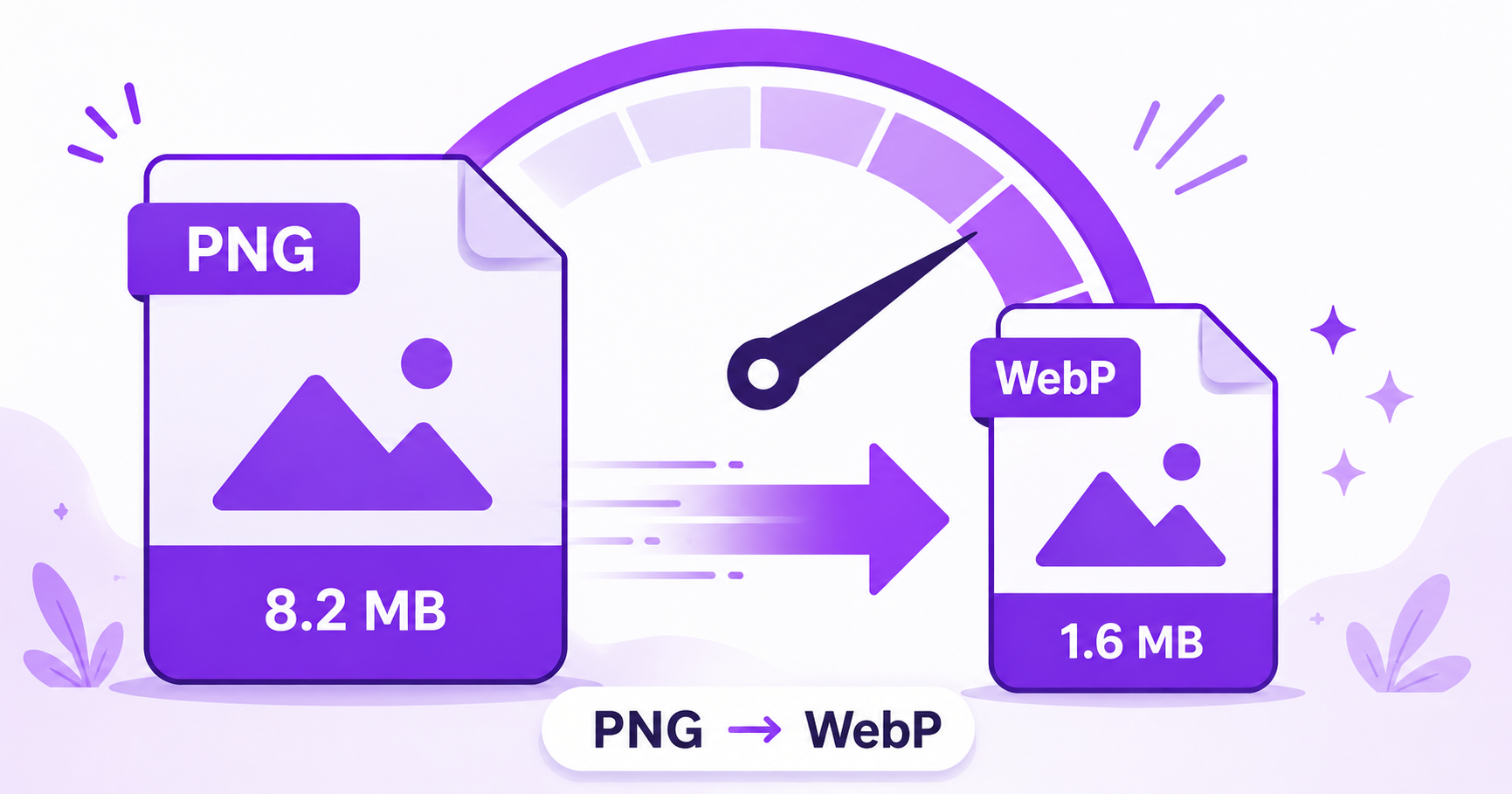
PNG is great for screenshots, graphics, and images with transparency, but it comes at a cost: large file sizes. If you’re using PNGs on your website, converting them to WebP can shrink them dramatically without losing quality, and it takes just seconds.
Why Is PNG So Large?
PNG uses lossless compression, which preserves every single pixel of detail exactly as it was. This is fantastic for sharp edges, text, and graphics, but it means PNG files don’t compress nearly as efficiently as formats designed with photography or general web use in mind. A PNG screenshot or graphic can easily be several times larger than an equivalent WebP file.
Why WebP Is Superior for Web Use
WebP was built by Google specifically to solve this problem. It supports both lossy and lossless compression, plus transparency just like PNG, but produces significantly smaller files. According to Google’s WebP documentation, WebP images are typically much smaller than comparable PNGs while maintaining similar visual quality, which directly helps page load speed and Core Web Vitals performance.
How to Convert PNG to WebP Online — Step-by-Step
Using ImageConvertNow’s PNG to WebP tool:
- Go to imageconvertnow.com/png-to-webp.
- Upload your PNG file.
- Click Convert and let the tool process your image.
- Download your new WebP file, ready to upload to your website.
Tips for Best Results
- If your PNG has a transparent background, don’t worry, WebP fully supports transparency too.
- Use lossless WebP compression for graphics and text-heavy images, and lossy WebP for photos, to get the best balance of size and quality.
- Always test your converted WebP images on your site to confirm they display correctly across browsers.
- Pair WebP conversion with image compression for maximum file size savings.
Common Use Cases
- Website graphics and screenshots: Cut page weight significantly without any visible quality loss.
- Icons and logos: Keep transparency while reducing file size compared to PNG.
- Blog featured images: Speed up page loads across your entire site.
- E-commerce product images: Faster-loading product pages can improve both user experience and conversions.
Frequently Asked Questions
1. Does WebP support transparency like PNG? Yes, WebP fully supports transparent backgrounds, just like PNG, so you won’t lose that feature when converting.
2. Will converting to WebP make my images blurry? No, at proper quality settings, WebP maintains visual quality very close to the original PNG while producing a smaller file.
3. Is PNG to WebP conversion free? Yes, ImageConvertNow offers free PNG to WebP conversion with no account required.
4. Do all browsers support WebP images? Yes, all major modern browsers, including Chrome, Firefox, Safari, and Edge, fully support WebP.
5. Should I delete my original PNG files after converting? It’s best to keep your original PNGs as a backup in case you need to re-edit or convert them again in the future.
Conclusion
Converting your PNG images to WebP is one of the easiest ways to shrink your website’s page weight and speed up load times. Try the free PNG to WebP converter now and see the size difference for yourself.
For even more savings, follow up with the image compressor, or explore the JPG to WebP tool for your photo files too.