
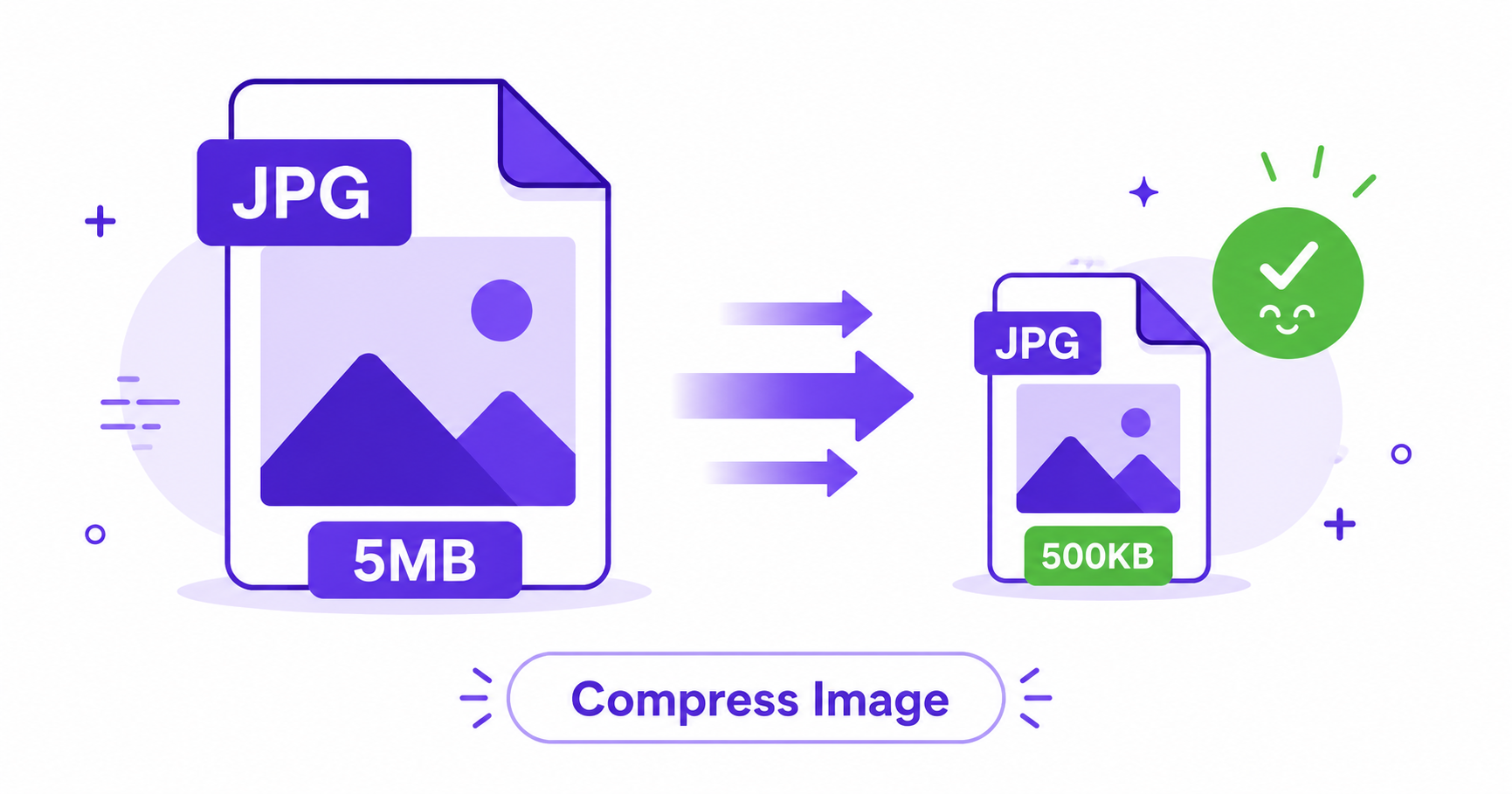
Large image files are one of the biggest reasons websites load slowly. The good news is you can shrink most images by 50-80% without any visible difference in quality, and it only takes a few seconds using a free online tool.
This guide covers why compression matters, the difference between lossy and lossless methods, and exactly how to compress your images for free.
Why Image Compression Matters
Large images slow down page load times, which hurts both user experience and SEO. Google explicitly factors page speed into its ranking signals, and Search Central’s guidance on image best practices recommends optimizing image size as one of the simplest ways to improve site performance. Beyond SEO, smaller images also mean less storage use, faster uploads, and quicker sharing over email or messaging apps.
Lossy vs Lossless Compression
Lossy compression reduces file size by discarding some image data that is least noticeable to the human eye. This is how JPG and WebP typically compress files, and it can shrink an image significantly with barely any visible quality change.
Lossless compression reduces file size without discarding any data at all, instead optimizing how the data is stored. This method, common with PNG, produces smaller savings than lossy compression but guarantees zero quality loss.
Most photos benefit from moderate lossy compression, while graphics with sharp edges or text often do better with lossless methods.
How to Compress an Image Online — Step-by-Step
Using ImageConvertNow’s compress tool:
- Go to imageconvertnow.com/compress-image.
- Upload the image you want to shrink.
- Click Compress and let the tool optimize your file automatically.
- Download your smaller image, ready to upload anywhere.
How Much Size Can You Save?
| Original Format | Typical Size Reduction | Visible Quality Change |
|---|---|---|
| JPG (high-res photo) | 40-70% smaller | None to minimal |
| PNG (graphic/screenshot) | 20-50% smaller | None |
| WebP (already optimized) | 10-20% smaller | None |
Actual savings depend on the original image’s content and existing compression level, but most everyday photos can be compressed significantly without any visible impact.
Impact on Google Core Web Vitals
Smaller images load faster, which directly improves metrics like Largest Contentful Paint, a key Core Web Vital that measures how quickly your page’s main content appears. Faster-loading pages tend to have lower bounce rates and can support better search visibility. Pairing compression with general image optimization guidance from web.dev gives you the best results for site speed.
Frequently Asked Questions
1. Will compressing my image make it look worse? At moderate compression levels, most people cannot tell the difference. Quality only becomes visibly worse at very aggressive compression settings.
2. What’s the difference between compressing and resizing an image? Compressing reduces file size while keeping the same dimensions. Resizing changes the actual width and height of the image. You can do both together for maximum size savings.
3. Is image compression free? Yes, ImageConvertNow offers free image compression with no account or software required.
4. Which format compresses best, JPG, PNG, or WebP? WebP generally compresses the smallest at equivalent quality, followed by JPG, with PNG typically producing the largest files due to its lossless nature.
5. How much can I realistically shrink a large photo? Depending on the original file, many photos can be reduced by 50-80% with no visible quality loss, especially if they haven’t been compressed before.
Conclusion
Compressing your images is one of the fastest ways to speed up your website and improve the experience for every visitor. Try the free image compressor now and see how much size you can save.
For even better results, pair compression with resizing or convert to a more efficient format like WebP.