
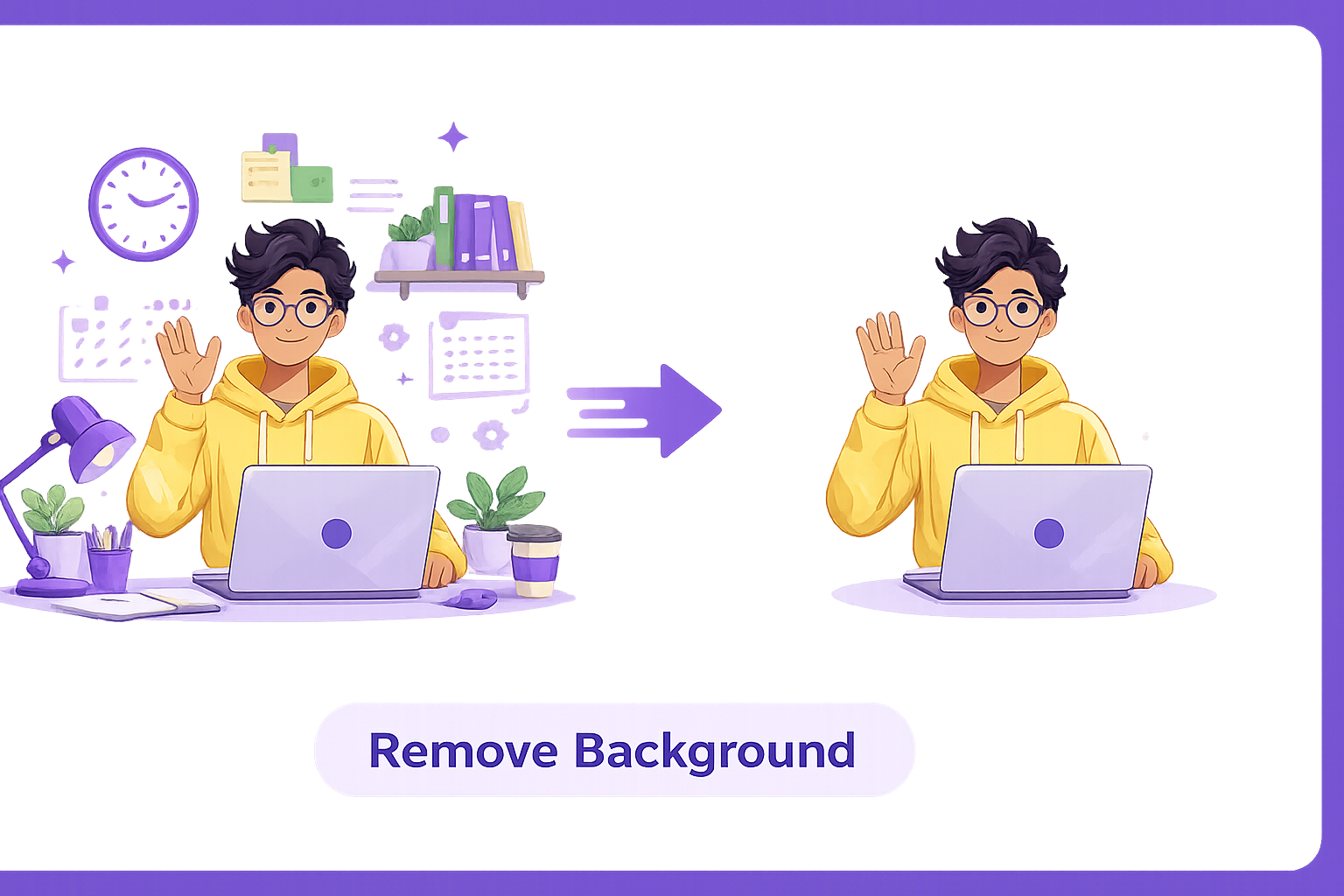
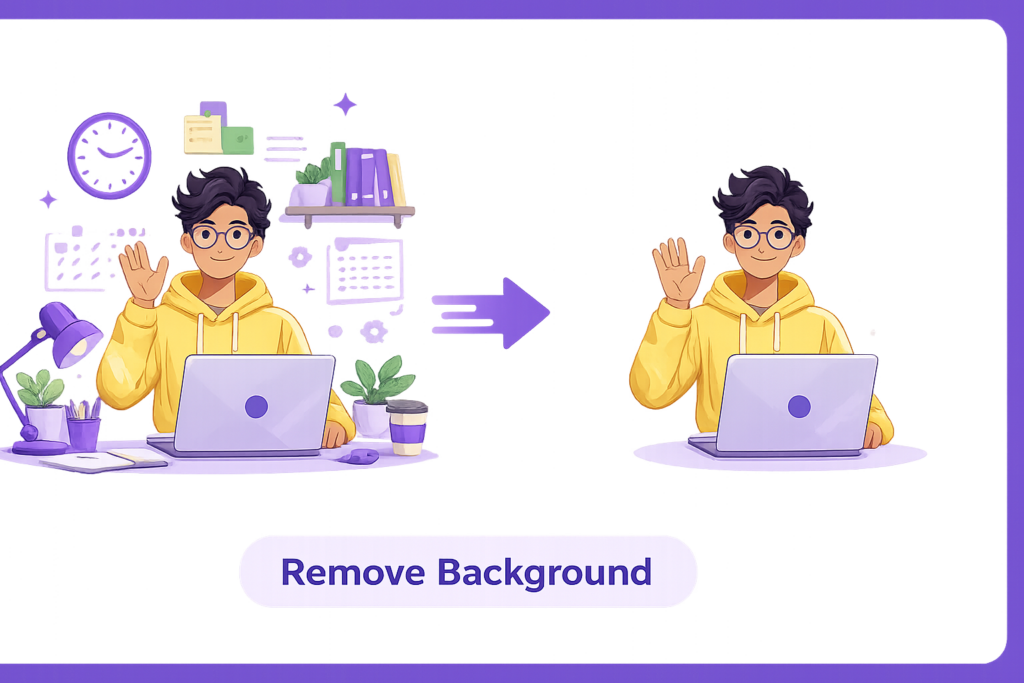
Removing a background used to mean hours in Photoshop carefully tracing around every edge. Today, AI can do it in seconds, and you do not need any design skill or software to get a clean, professional result.
Here is how background removal works, when you need it, and how to do it for free.
What Is Background Removal Used For?
Background removal isolates the main subject of a photo, whether that is a person, product, or object, and cuts away everything else. The result is a transparent PNG you can place on any background, use in a design, or drop straight into a template.
How AI Makes It Instant
Modern background removal tools use AI models trained to recognize edges, shapes, and subjects in a photo. Instead of manually selecting pixels, the AI detects the subject automatically and separates it from the background in one click. This is far faster and more consistent than manual selection tools, even for tricky subjects like hair or fur.
How to Remove a Background Online — Step-by-Step
Using ImageConvertNow’s background remover:
- Go to imageconvertnow.com/remove-background.
- Upload your photo.
- Let the AI process the image and detect the subject automatically.
- Download your finished image with a transparent background, ready to use.
No manual selection, no software, and no design experience required.
Tips for Complex Images
- For subjects with fine details like hair or fur, use a high-resolution original photo for the cleanest edge detection.
- Choose photos with good contrast between the subject and background for the most accurate results.
- If a small edge is missed, touch it up afterward using a photo editor.
- Avoid busy or cluttered backgrounds when photographing products, since simpler backgrounds are easier for AI to separate cleanly.
Common Use Cases
- E-commerce product photos: Clean, consistent product cutouts for online stores and marketplaces.
- Social media graphics: Place subjects on branded backgrounds or templates.
- Profile pictures and headshots: Swap out a background for a more professional look.
- Design and marketing materials: Combine cutouts with other graphics for ads, flyers, and presentations.
Frequently Asked Questions
1. Does AI background removal work on any type of photo? It works best on photos with a clear subject and reasonable contrast against the background. Very cluttered or low-contrast images may need manual touch-ups afterward.
2. What file format do I get after removing the background? You’ll get a PNG file, since PNG is the only common format that supports transparency.
3. Is background removal free? Yes, ImageConvertNow’s background remover is free to use with no account required.
4. Can I remove backgrounds from multiple photos at once? Many online tools, including ImageConvertNow, support processing images individually with quick turnaround, making it fast even for several photos in a row.
5. Will the AI perfectly capture fine details like hair? Modern AI models handle fine detail quite well, though extremely fine or wispy hair may need a small manual touch-up for a perfect edge.
Conclusion
Removing a background no longer requires design software or hours of manual work. Try the free AI background remover now and get a clean, transparent cutout in seconds.
Once you’ve removed the background, you can resize your image for its intended platform or fine-tune it further in the photo editor.