
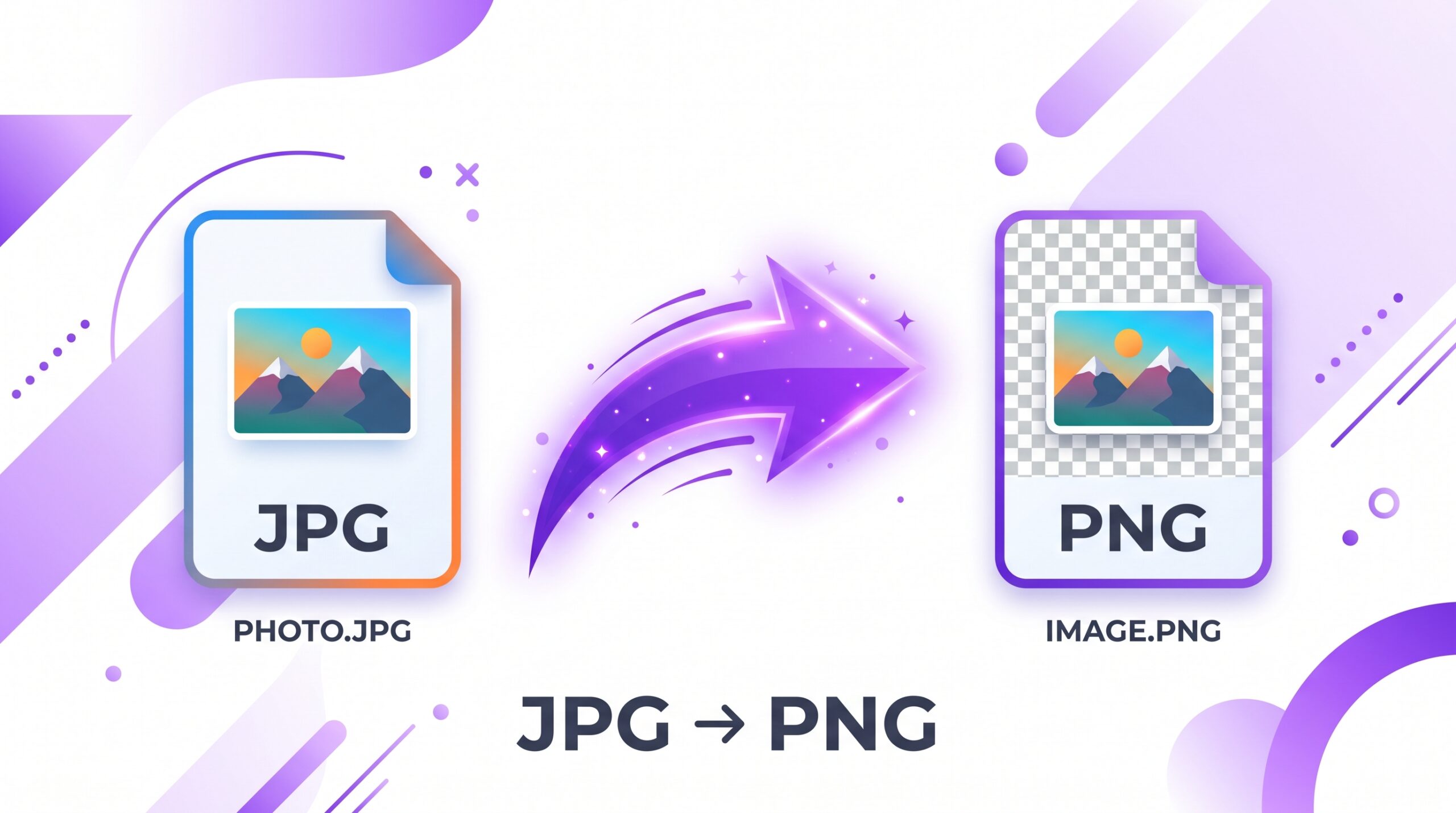
Sometimes a JPG just will not do the job. If you are designing a logo, making a sticker, or need a clean cutout for a website, you need PNG’s crisp edges and transparency support. The good news is converting JPG to PNG online takes seconds and requires no design software.
This guide walks you through the difference between the two formats, when you actually need PNG, and how to convert for free.
PNG vs JPG — Key Differences
JPG uses lossy compression, which is efficient for photographs but sacrifices some detail every time the file is saved. PNG uses lossless compression, meaning every pixel of detail is preserved exactly. PNG also supports an alpha channel, which allows for transparent backgrounds, something JPG cannot do at all.
The tradeoff is size: PNG files are generally larger than JPGs, especially for complex photos with lots of color variation. That is why PNG works best for logos, icons, illustrations, and graphics rather than everyday snapshots.
When Should You Convert JPG to PNG?
- Transparency needs. If you need to remove a background and place your subject on another image, you need PNG.
- Design work. Logos, icons, and UI graphics look sharper and cleaner in PNG format.
- Text and line art. PNG preserves crisp edges on text and thin lines far better than JPG, which can introduce blur and artifacts.
- Print-quality graphics. When you need pixel-perfect accuracy for print materials, PNG’s lossless nature is the safer choice.
How to Convert JPG to PNG for Free — Step-by-Step
Using ImageConvertNow’s JPG to PNG tool is straightforward:
- Visit imageconvertnow.com/jpg-to-png.
- Upload your JPG image.
- Click Convert and let the tool process the file.
- Download the finished PNG file to your device.
The entire process happens in your browser, with no software to install.
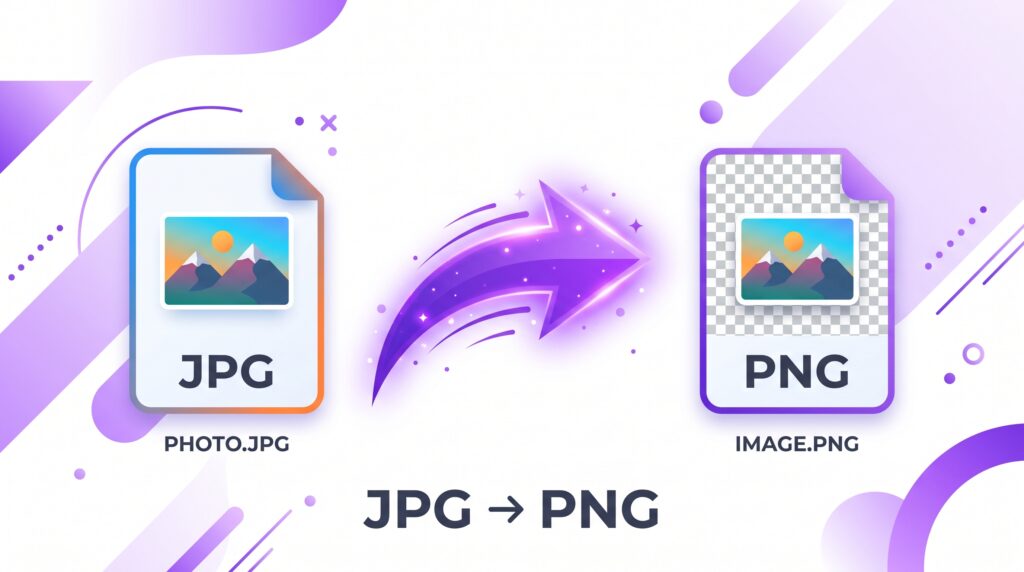
How to Get a Transparent Background After Conversion
Converting JPG to PNG on its own will not add transparency, since a JPG never had any transparent pixels to begin with. To get a see-through background, you need to remove the background after converting. ImageConvertNow’s background remover uses AI to detect the subject and cut out the background automatically, giving you a clean PNG with a transparent layer ready for logos, product photos, or design work.
Common Use Cases
- Logos and branding assets: PNG keeps your logo sharp on any background color.
- Stickers and overlays: Transparent PNGs are essential for messaging app stickers and social media overlays.
- Web graphics and icons: PNG avoids the blurry artifacts JPG can introduce around sharp edges.
- Product photography: E-commerce sellers often need transparent product cutouts for marketplace listings.
Frequently Asked Questions
1. Does converting JPG to PNG improve image quality? No. Converting a JPG to PNG preserves whatever quality the JPG already had; it cannot restore detail that was lost during the original JPG compression.
2. Will my JPG automatically get a transparent background? No. A plain conversion just changes the file format. You need a separate background removal step to add transparency.
3. Is JPG to PNG conversion free? Yes, ImageConvertNow offers free conversion with no account or software required.
4. Why is my new PNG file bigger than the original JPG? This is normal. PNG’s lossless compression preserves more detail, which naturally increases file size compared to JPG’s compressed format.
5. Can I convert multiple JPGs to PNG at once? Many online converters, including ImageConvertNow, support batch uploads so you can convert several images in one session.
Conclusion
Whether you are prepping a logo, building a sticker pack, or need cleaner edges for a design project, converting JPG to PNG is quick and free. Try the JPG to PNG converter now, and if you need a transparent cutout, follow up with the background remover.
You can also compress your finished PNG if the file size is larger than you need, or convert it back anytime with the PNG to JPG tool.