
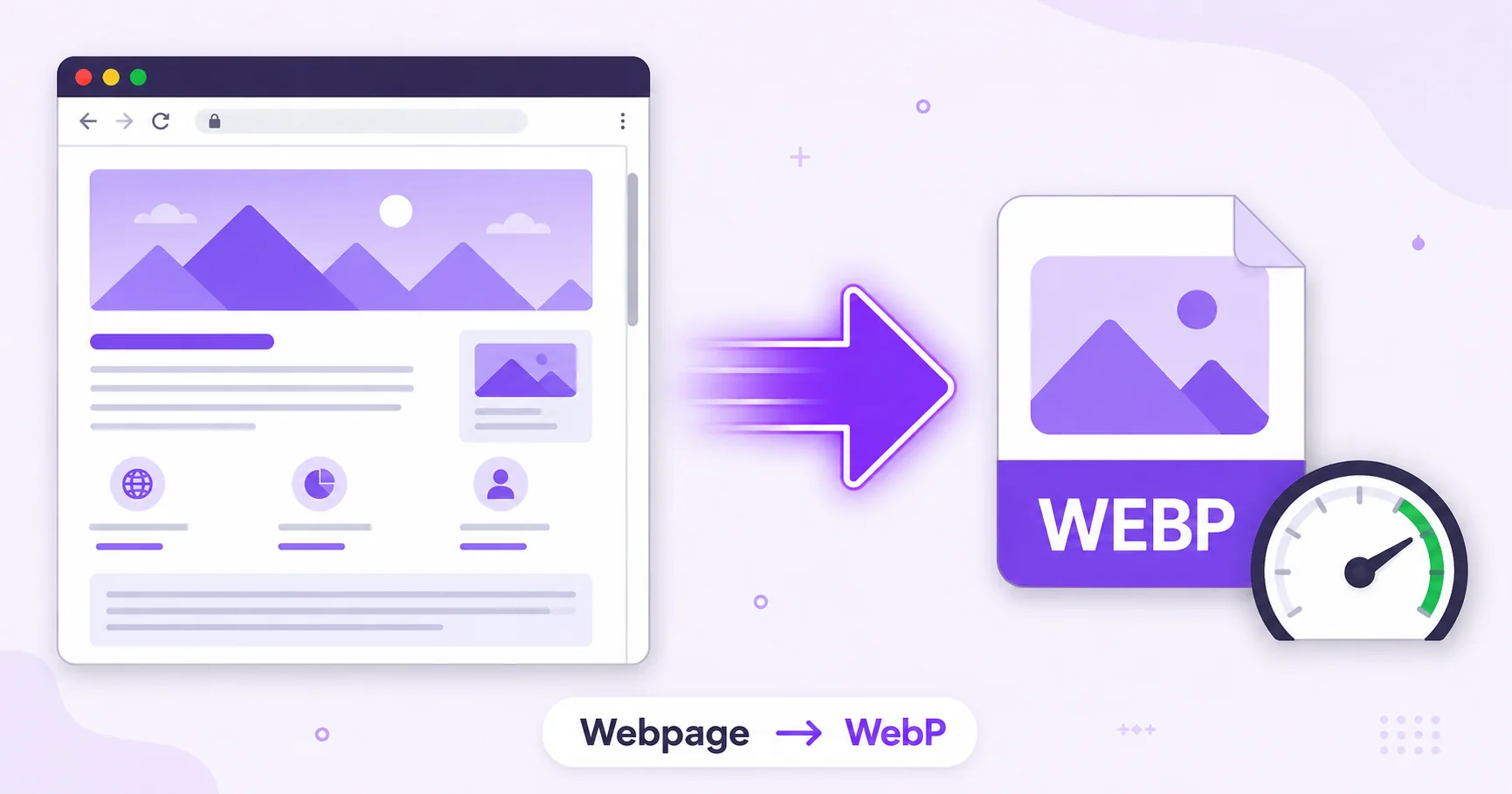
Embedding a preview image of a webpage on another site is common for portfolios, case studies, and design showcases, but a heavy PNG or JPG screenshot can slow that page down. Capturing the webpage as WebP instead keeps the preview light and fast-loading without looking any less sharp.
Why This Matters for Embedded Previews
If you’re showcasing a website’s design on a portfolio or case study page, that preview image often isn’t the main content, it’s supporting material. Making it as lightweight as possible keeps the page it’s embedded on fast, which matters for both visitor experience and Core Web Vitals performance.
Why WebP Beats PNG or JPG for This Specific Case
WebP produces noticeably smaller files than PNG or JPG at similar visual quality, as detailed in Google’s WebP documentation. For a full-page website capture specifically, which tends to be a tall, detail-heavy image, that size advantage compounds, making WebP the more practical choice when you’re embedding the preview elsewhere rather than archiving it.
How to Convert a Webpage to WebP — Step-by-Step
Using ImageConvertNow’s HTML to WebP tool:
- Go to imageconvertnow.com/html-to-webp.
- Paste in the URL of the webpage you want to capture, or upload your HTML file.
- Click Convert and let the tool render the full page.
- Download your finished WebP screenshot.
Tips for Best Results
- Give JavaScript-heavy pages a moment to fully load before capturing, so no dynamic content gets missed.
- Confirm the platform you’re embedding the image on supports WebP display before relying on it exclusively.
- If text sharpness matters more than file size for your specific use, the HTML to PNG tool may be a better fit.
Common Use Cases
- Portfolio previews: Show off a website design without slowing down the portfolio page itself.
- Case studies: Embed lightweight before-and-after webpage captures in a project writeup.
- Design showcases: Display multiple website previews on one page without excessive load time.
- Documentation: Insert compact webpage screenshots into guides or reports.
Frequently Asked Questions
1. Will the WebP capture the full page or just what’s visible?
The tool renders the entire page, including content below the fold, into a single continuous image, not just the visible viewport.
2. Will my WebP screenshot look as sharp as a PNG version?
Generally yes, WebP maintains strong visual quality at a much smaller file size compared to PNG for most screenshot content.
3. Is converting a webpage to WebP free?
Yes, ImageConvertNow converts webpages to WebP for free with no account required.
4. Can I capture a page that requires a login?
Generally no, since most online tools can only access publicly available pages, not ones behind authentication.
5. Should I choose WebP or PNG for a webpage capture?
Choose WebP when file size and load speed matter, such as embedding the image elsewhere, or PNG when you need the absolute sharpest text and UI detail.
Conclusion
When a webpage preview needs to stay light and fast, capturing it as WebP is the smarter choice. Try the free HTML to WebP tool now.
Need sharper text instead? Try the HTML to PNG tool or the HTML to JPG tool. Explore more of the toolkit: compress your images, remove backgrounds, convert a WebP file to JPG, or turn a GIF into a still PNG. Learn more at W3Schools’ HTML images guide.