
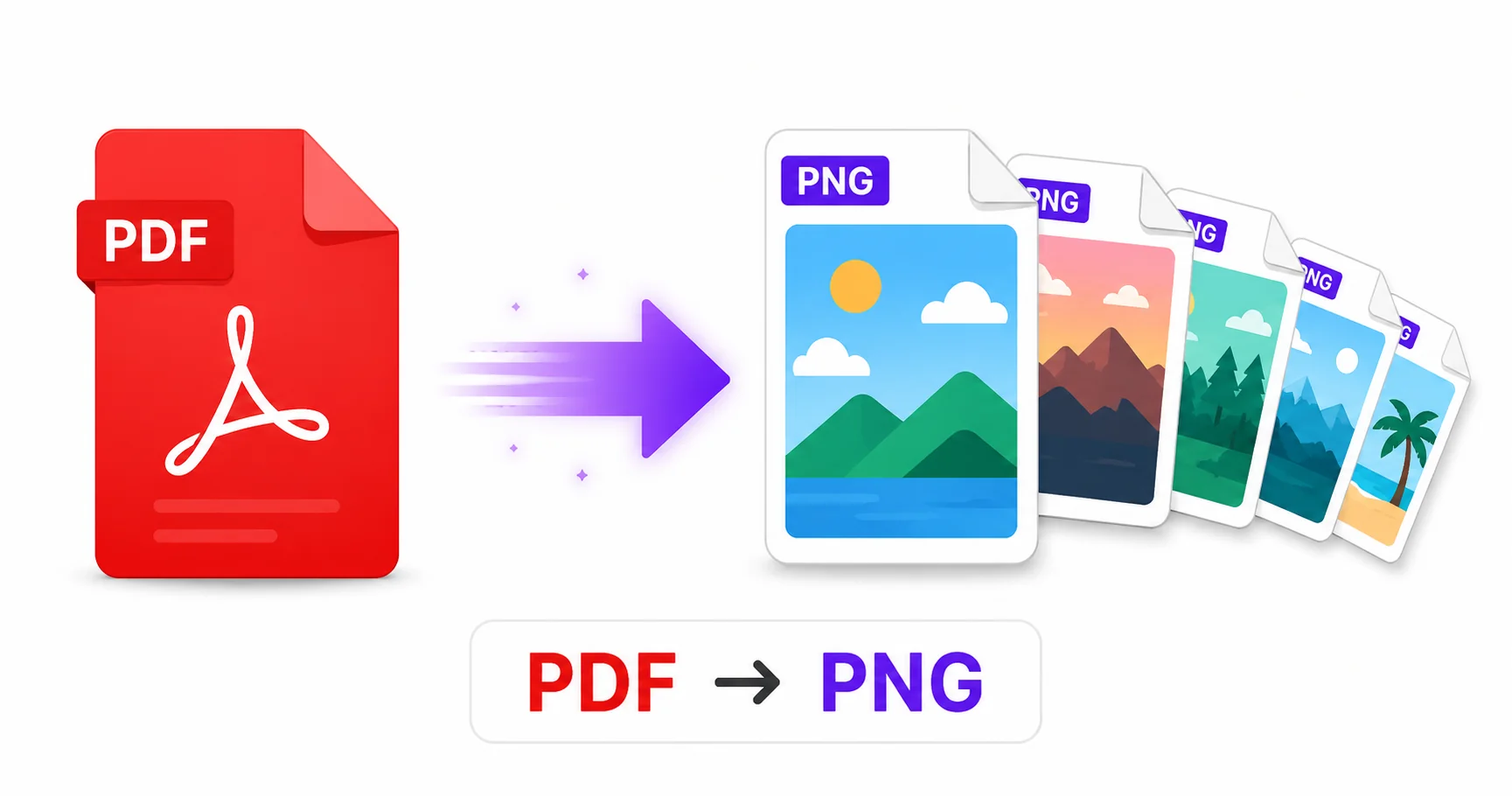
Not every PDF page extraction needs to sacrifice quality for a smaller file. When you’re pulling a page with fine text, a diagram, or a design element that needs to stay sharp, PNG is the format that keeps every detail intact.
When Lossless Quality Actually Matters
Extracting a PDF page as a photo-style JPG works fine for most everyday sharing, but it introduces compression that can soften text edges and fine lines. If you’re pulling a page with detailed diagrams, technical drawings, or text that needs to stay perfectly crisp, PNG’s lossless compression preserves that detail exactly as it appeared in the original document.
PNG vs JPG for Extracted PDF Pages
PNG is the better choice when the page contains sharp graphics, transparency, or text-heavy content where compression artifacts would be noticeable. JPG remains the more practical option when file size matters more than pixel-perfect accuracy, such as sharing a quick preview of a page rather than a reference-quality extract.
How to Convert PDF to PNG — Step-by-Step
Using ImageConvertNow’s PDF to PNG tool:
- Go to imageconvertnow.com/pdf-to-png.
- Upload your PDF file.
- Click Convert. Each page is processed into its own PNG image.
- Download the PNG images individually or as a batch.
Tips for Best Results
- Choose a higher output resolution for pages with fine text or detailed graphics, to preserve maximum sharpness.
- If your PDF page has design elements meant to sit on a transparent background, check whether the extracted PNG preserves that correctly.
- For multi-page documents, batch conversion saves significant time over extracting pages one at a time.
Common Use Cases
- Technical documentation: Extract diagrams or schematics that need to stay perfectly sharp.
- Design references: Pull a page containing graphics or layouts for use in another project.
- Presentations: Insert a crisp PDF page image into a slide without visible compression artifacts.
- Archival quality previews: Create lossless image versions of important document pages.
Frequently Asked Questions
1. Should I use PNG or JPG when extracting pages from a PDF?
Choose PNG for the sharpest possible text and graphics, or the PDF to JPG tool if a smaller file size matters more than pixel-perfect detail.
2. Does converting PDF to PNG work for multi-page documents?
Yes, each page is converted into its own separate PNG image, so multi-page PDFs produce one image per page.
3. Is PDF to PNG conversion free?
Yes, ImageConvertNow converts PDF pages to PNG for free with no account required.
4. Will text stay sharp in the converted PNG?
Yes, especially at a high resolution setting, since PNG’s lossless compression avoids the softening that can occur with JPG.
5. Can I convert just one page instead of the whole PDF?
Many tools let you select specific pages to convert rather than processing the entire document.
Conclusion
When quality matters more than file size, extracting PDF pages as PNG is the right call. Try the free PDF to PNG converter now.
Need a smaller file instead? Use the PDF to JPG tool, or bundle images back into a document with the PNG to PDF tool. Explore more of the toolkit: compress your images, remove backgrounds, convert a WebP file to JPG, or turn a GIF into a still PNG. Learn more at pdf-lib’s PDF reference and web.dev’s image optimization guide.