
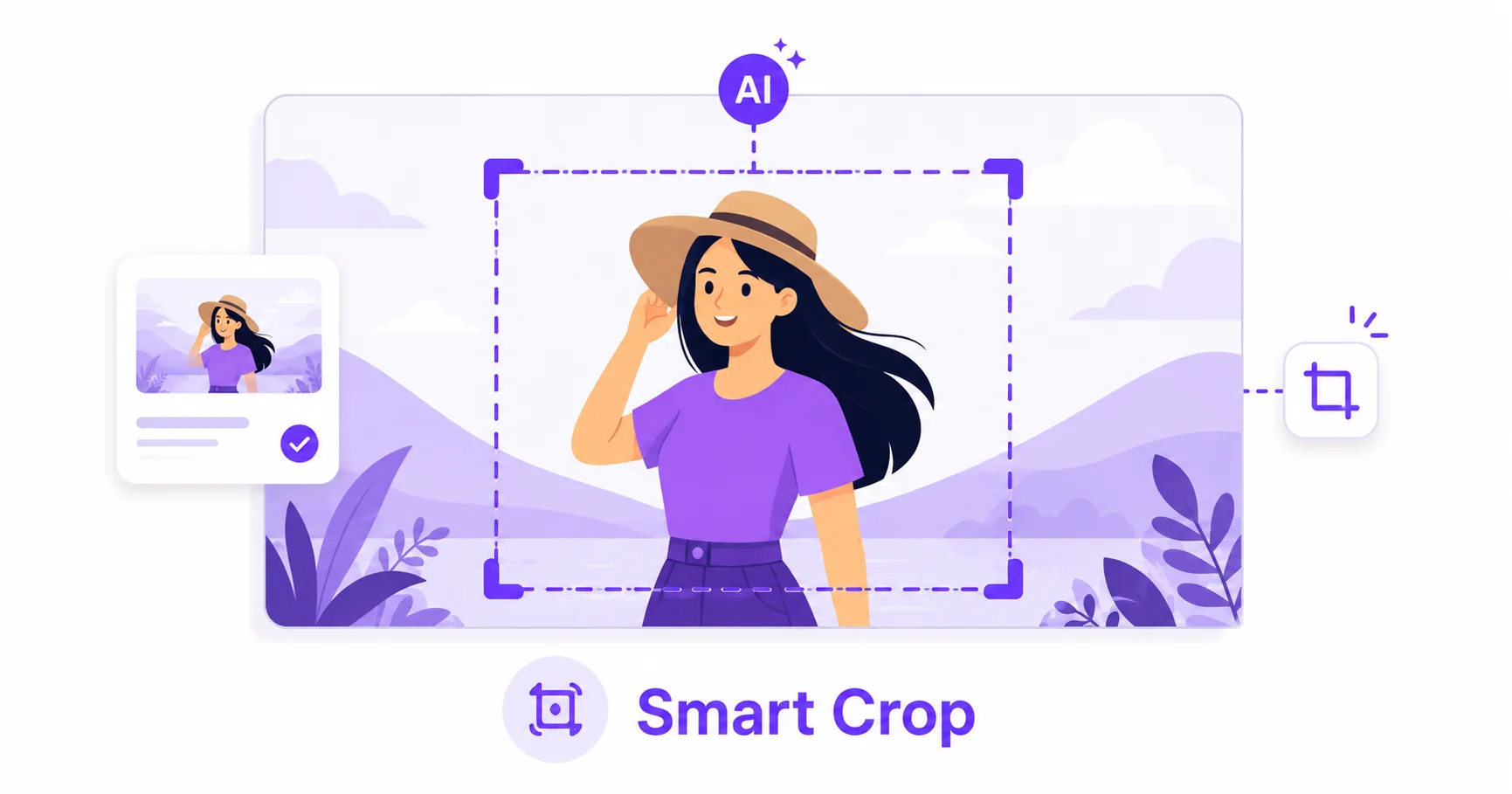
Cropping a batch of photos to the same dimensions is easy. Cropping them so the actual subject stays centered and visible every single time is harder, especially when each photo is framed differently. Smart crop uses AI to solve exactly that problem automatically.
The Problem with Manual Batch Cropping
A fixed crop applied to every image in a batch assumes each photo is framed the same way, which is rarely true. Crop from the center every time, and you’ll end up cutting off heads, product edges, or key details in photos where the subject isn’t perfectly centered. Fixing each one by hand works, but it doesn’t scale when you’re processing dozens of images.
How AI Detects the Right Subject
Smart crop analyzes each image individually, detecting the main subject, whether that’s a face, product, or focal point, and frames the crop around it automatically. Instead of applying the same blind crop to every photo, each image gets a crop tailored to what’s actually in it.
How to Smart Crop an Image — Step-by-Step
Using ImageConvertNow’s smart crop tool:
- Go to imageconvertnow.com/smart-crop.
- Upload your image or batch of images.
- Select your target dimensions or aspect ratio.
- Let the AI detect the subject and crop automatically, then download your results.
Smart Crop vs Manual Crop
Manual cropping with the standard crop tool gives you full, precise control over every detail, which is ideal when you’re working on a single hero image and want exact composition. Smart crop is built for speed and consistency across many images at once, making it the better choice for batch processing thumbnails, product photos, or content where reviewing each crop individually isn’t practical.
Common Use Cases
- E-commerce thumbnails: Automatically frame products consistently across a large catalog.
- Blog and article thumbnails: Generate consistent preview images from photos with varying compositions.
- Social media batches: Prepare multiple posts without manually adjusting each crop.
- User-generated content: Standardize framing across photos submitted by different people.
Frequently Asked Questions
1. How accurate is AI subject detection for cropping?
It’s generally quite reliable for clear, well-composed photos with an obvious main subject, though unusual compositions or multiple competing subjects may occasionally need a manual review.
2. Can I still adjust the crop if the AI gets it wrong?
Yes, if the automatic result isn’t quite right, you can fine-tune it manually using the standard crop tool.
3. Is smart cropping images free?
Yes, ImageConvertNow’s smart crop tool is free to use with no account required.
4. Can I smart crop multiple images at once?
Yes, this is exactly where smart crop shines, since it applies subject-aware framing consistently across a whole batch of photos automatically.
5. Does smart crop work for both square and rectangular formats?
Yes, you can specify your target dimensions or aspect ratio, and the AI will frame the detected subject within that shape.
Conclusion
When you need consistent, subject-aware cropping across many images, smart crop saves significant time over doing it by hand. Try the free smart crop tool now.
Explore more of the toolkit: fine-tune individual crops with the standard crop tool, adjust exact dimensions with the resize tool, compress your finished images, or remove a distracting background before cropping. Convert a WebP file to JPG or a GIF to a still PNG as needed. Learn more at web.dev’s image optimization guide and Google Search Central’s image guidance.