
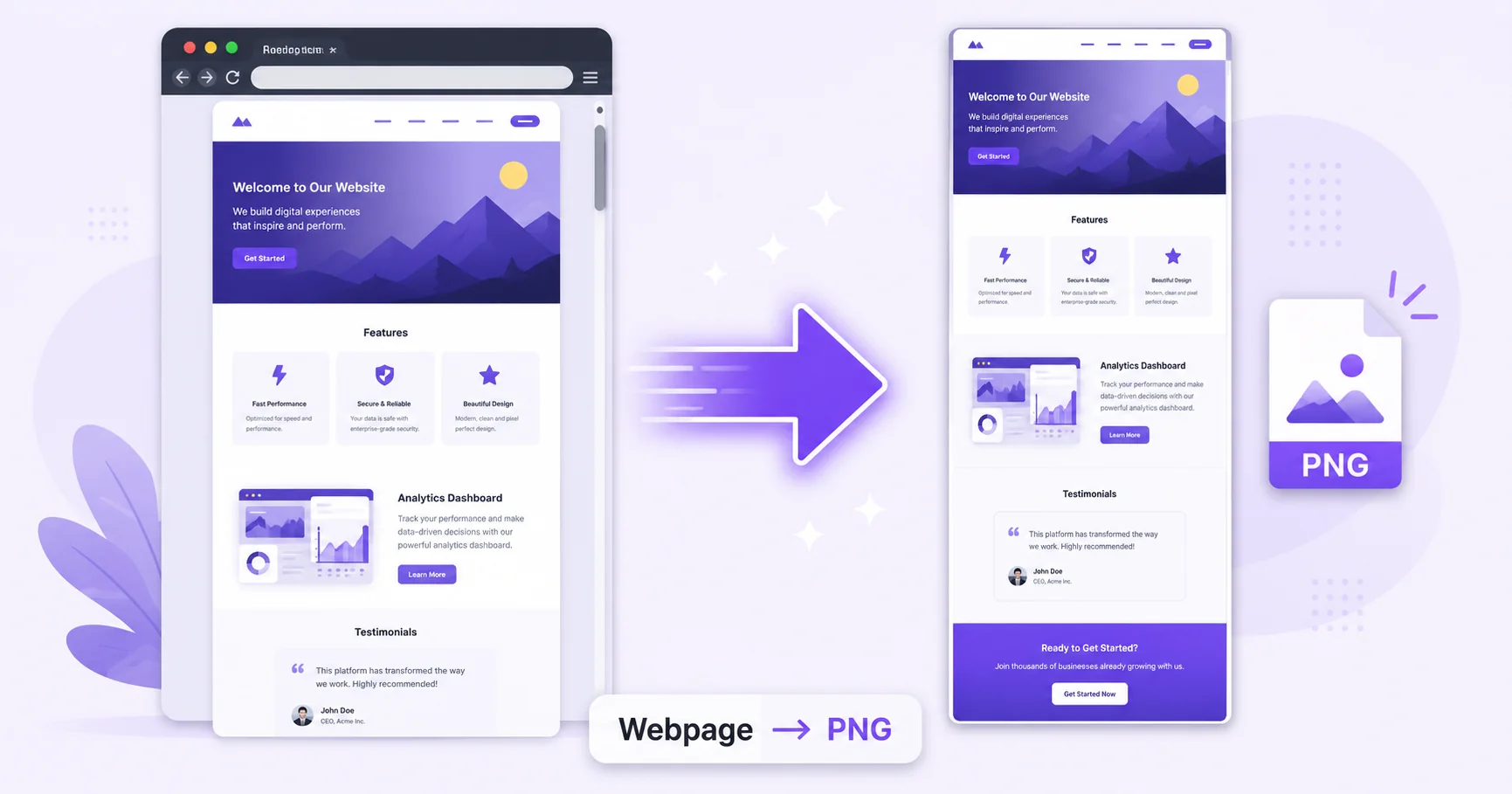
Your browser’s built-in screenshot tool only captures what’s visible on screen, cutting off everything below the fold. If you need a full, uninterrupted image of an entire webpage, top to bottom, a dedicated webpage-to-PNG tool solves that in seconds.
Why a Regular Screenshot Isn’t Enough
Standard screen capture tools grab only the current viewport, meaning long pages get cut off unless you manually stitch together multiple scrolled screenshots. A full-page capture tool instead renders the entire page, including content below the fold, into a single continuous image.
Why PNG for Screenshots
PNG’s lossless compression keeps text and interface elements sharp, which matters for screenshots where crisp, readable text is often the whole point. Unlike JPG, PNG also avoids compression artifacts around sharp edges like buttons, text, and UI borders, as covered in MDN’s guide to image formats.
How to Convert a Webpage to PNG — Step-by-Step
Using ImageConvertNow’s HTML to PNG tool:
- Go to imageconvertnow.com/html-to-png.
- Paste in the URL of the webpage you want to capture, or upload your HTML file.
- Click Convert and let the tool render the full page.
- Download your finished PNG screenshot.
Tips for Best Results
- If a page relies heavily on JavaScript to load content, give the tool a moment to fully render before capturing.
- For very long pages, check that the entire page height was captured correctly in the final image.
- If your resulting PNG is larger than you need, run it through the image compressor afterward.
Common Use Cases
- Design reviews: Capture a full page layout for feedback or client approval.
- Archiving: Keep a visual record of how a page looked at a specific point in time.
- Bug reports: Show a complete page state when reporting a layout or content issue.
- Competitive research: Save full-page captures of competitor websites for reference.
Frequently Asked Questions
1. Will the screenshot capture the entire page or just what’s visible?
A dedicated webpage capture tool renders the full page height, including content below the fold, not just the visible viewport area.
2. Can I capture a page that requires a login?
Generally no, since most online tools can only access publicly available pages, not ones behind authentication.
3. Is converting a webpage to PNG free?
Yes, ImageConvertNow converts webpages to PNG for free with no account required.
4. Should I use PNG or JPG for a webpage screenshot?
PNG is generally better for screenshots since it keeps text and UI elements sharp without compression artifacts. Use the HTML to JPG tool if a smaller file size matters more.
5. Will dynamic or animated content show up correctly?
The capture reflects a single moment in time, so animations or dynamically loading content will appear exactly as they looked when the page was rendered.
Conclusion
Capturing a complete webpage, not just what fits on screen, takes seconds with the free HTML to PNG tool.
Need a smaller file instead? Try the HTML to JPG tool, or save the page as a document with the HTML to PDF converter. Learn more about image formatting best practices at web.dev’s image optimization guide and W3Schools’ HTML images reference.