
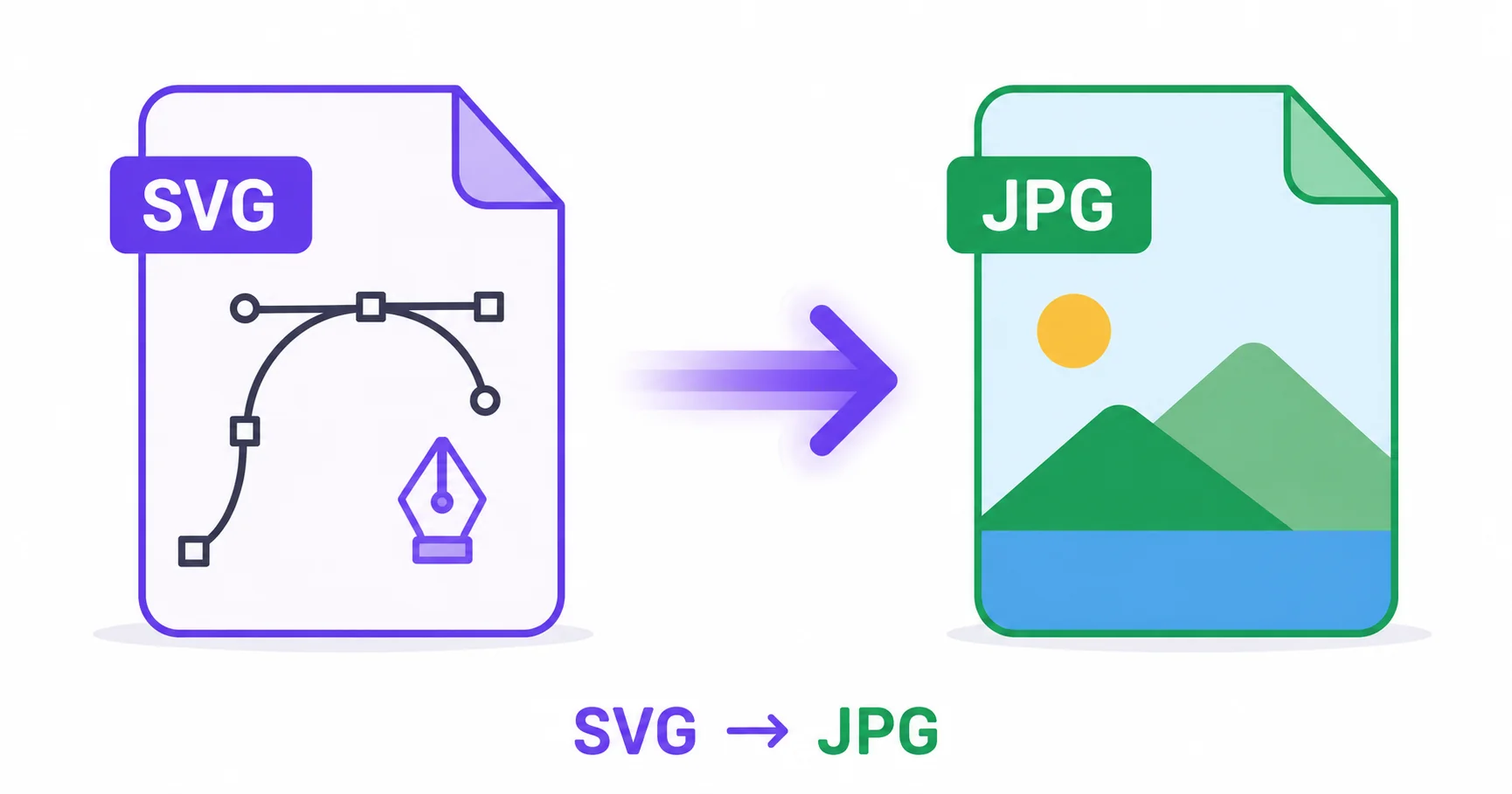
SVG is perfect for logos and icons that need to scale to any size, but it isn’t always the right format for every situation. When you need a standard photo-style image instead of a vector file, converting SVG to JPG takes just seconds and works everywhere.
What Is SVG?
SVG (Scalable Vector Graphics) builds images from mathematical shapes and paths rather than pixels, which means it can scale to any size without ever becoming blurry. It’s the standard format for logos, icons, and illustrations across the web, as detailed in the W3C SVG specification.
Why You Might Need JPG Instead of SVG
- Universal compatibility: JPG opens in every image viewer, editor, and platform without exception.
- Email and document embedding: Many email clients and document tools don’t handle SVG reliably.
- Photo-style content: If your design includes gradients or photo elements, JPG’s raster format may render more predictably across contexts than SVG.
- Simple sharing: Not everyone’s software can open or preview SVG files correctly.
How to Convert SVG to JPG Online — Step-by-Step
Using ImageConvertNow’s SVG to JPG tool:
- Go to imageconvertnow.com/svg-to-jpg.
- Upload your SVG file.
- Choose your desired output resolution.
- Click Convert and download your JPG file.
Tips for Best Results
- Choose a resolution large enough for your intended use, since JPG is a fixed-size raster format unlike infinitely scalable SVG.
- Keep in mind that JPG doesn’t support transparency, so any transparent areas in your SVG will be filled with a solid background color.
- If you need to preserve transparency, use the SVG to PNG tool instead.
Common Use Cases
- Email signatures and newsletters: Use a raster logo that displays reliably across email clients.
- Presentations and documents: Insert a fixed-size image into software that doesn’t handle vector files well.
- Social media graphics: Some platforms handle raster uploads more predictably than vector files.
- Print previews: Generate a quick raster preview of a vector design for review purposes.
Frequently Asked Questions
1. Will my JPG stay sharp after converting from SVG?
Yes, as long as you choose an appropriately high output resolution for your intended use, since SVG has no fixed size and can be rendered at any resolution you specify.
2. What happens to a transparent background in my SVG?
JPG does not support transparency, so any transparent areas in your SVG will be filled with a solid background color, typically white, during conversion.
3. Is SVG to JPG conversion free?
Yes, ImageConvertNow converts SVG to JPG for free with no account required.
4. Should I use JPG or PNG when converting from SVG?
Choose PNG if you need to preserve transparency, or JPG if you want the smallest file size and don’t need a transparent background.
5. Can I convert a JPG back into an editable SVG?
Not perfectly. Converting a raster JPG back to SVG generally requires tracing the image and won’t reproduce the original vector paths exactly.
Conclusion
When SVG isn’t the right fit, converting to JPG gets you a universally compatible image in seconds. Try the free SVG to JPG converter now.
Need transparency preserved instead? Use the SVG to PNG tool, or resize your finished image for your specific use case. Learn more at MDN’s image formats reference and Adobe’s file type guide.